
Reviews
A review asks organization members to give feedback on a set of inferences of one schema snapshot before a date. Each reviewer answers each inference: whether the prediction was right, and the review questions of its reports. Their answers appear in the Inferences table and in the CSV export.
Creating and following reviews needs Manage reviews. Reviewers need Review; the built-in Reviewer role has exactly that.
Create a review
Section titled “Create a review”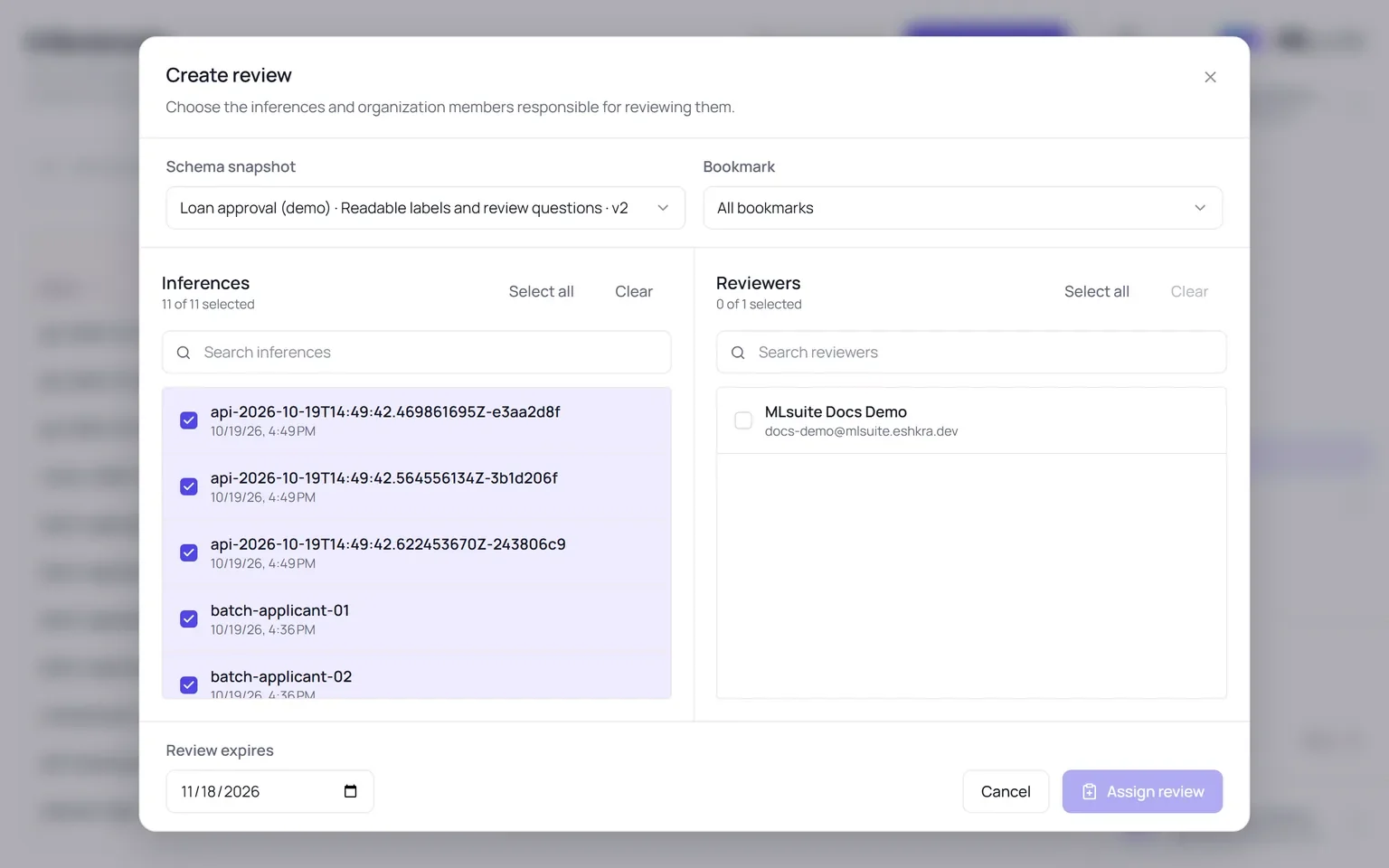
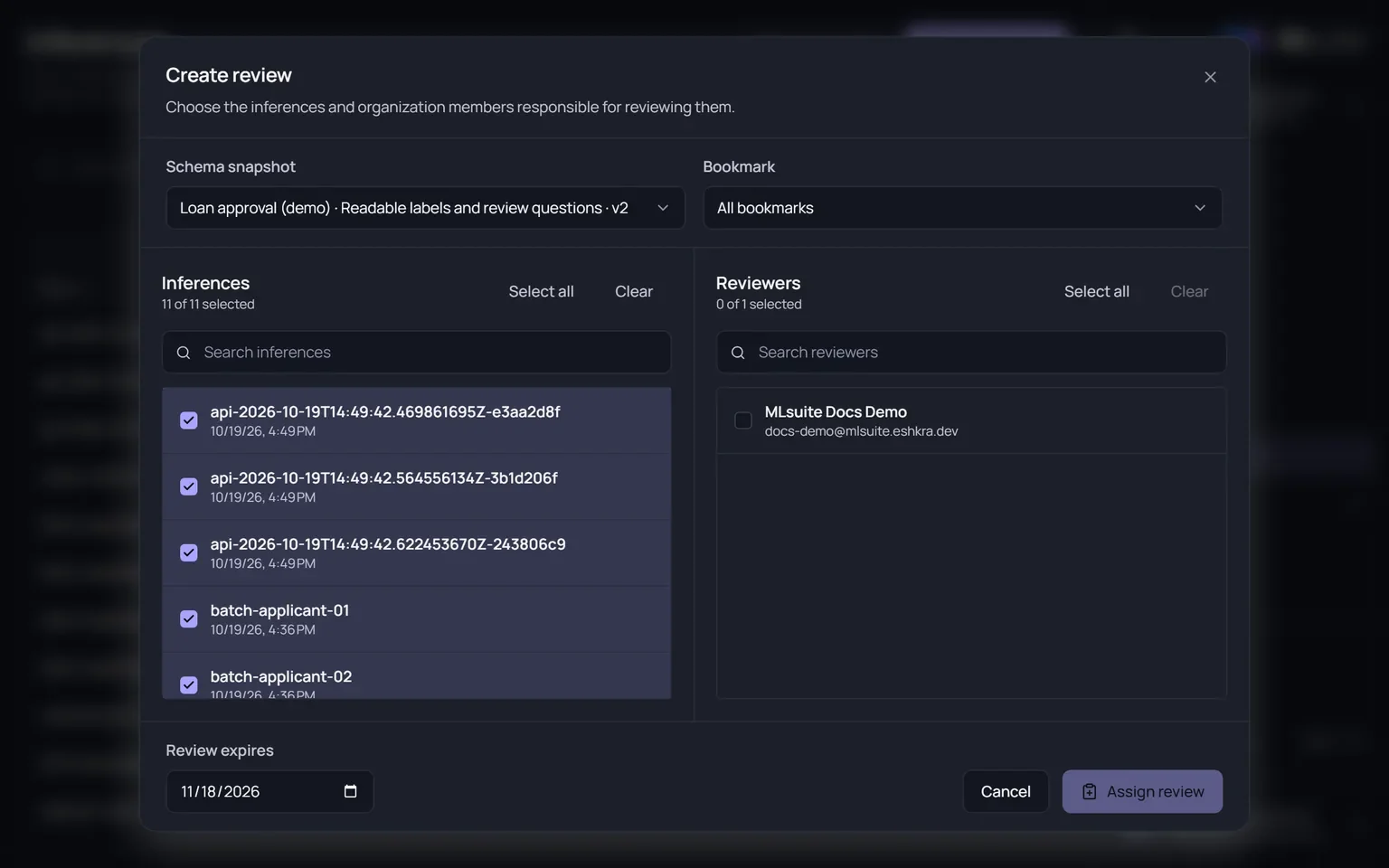
- On Inferences, filter the table to the runs you want reviewed, then choose Create review. The dialog starts from the whole filtered result.
- Pick the Schema snapshot when the result spans several; a review covers one snapshot. A Bookmark can narrow it further.
- Select the Inferences. All start selected.
- Select the Reviewers: active members whose role includes Review. If none are listed, give someone that permission first.
- Set Review expires. It defaults to 30 days from today and ends at 23:59 UTC that day.
- Choose Assign review.
The inferences appear in each reviewer’s Review inbox. MLsuite sends no email or notification; tell the reviewers. The review questions come from the snapshot itself, see Feedback questionnaires. Reviewers and inferences cannot be changed after the review is created, and a review cannot be extended: create another one.
Follow a review
Section titled “Follow a review”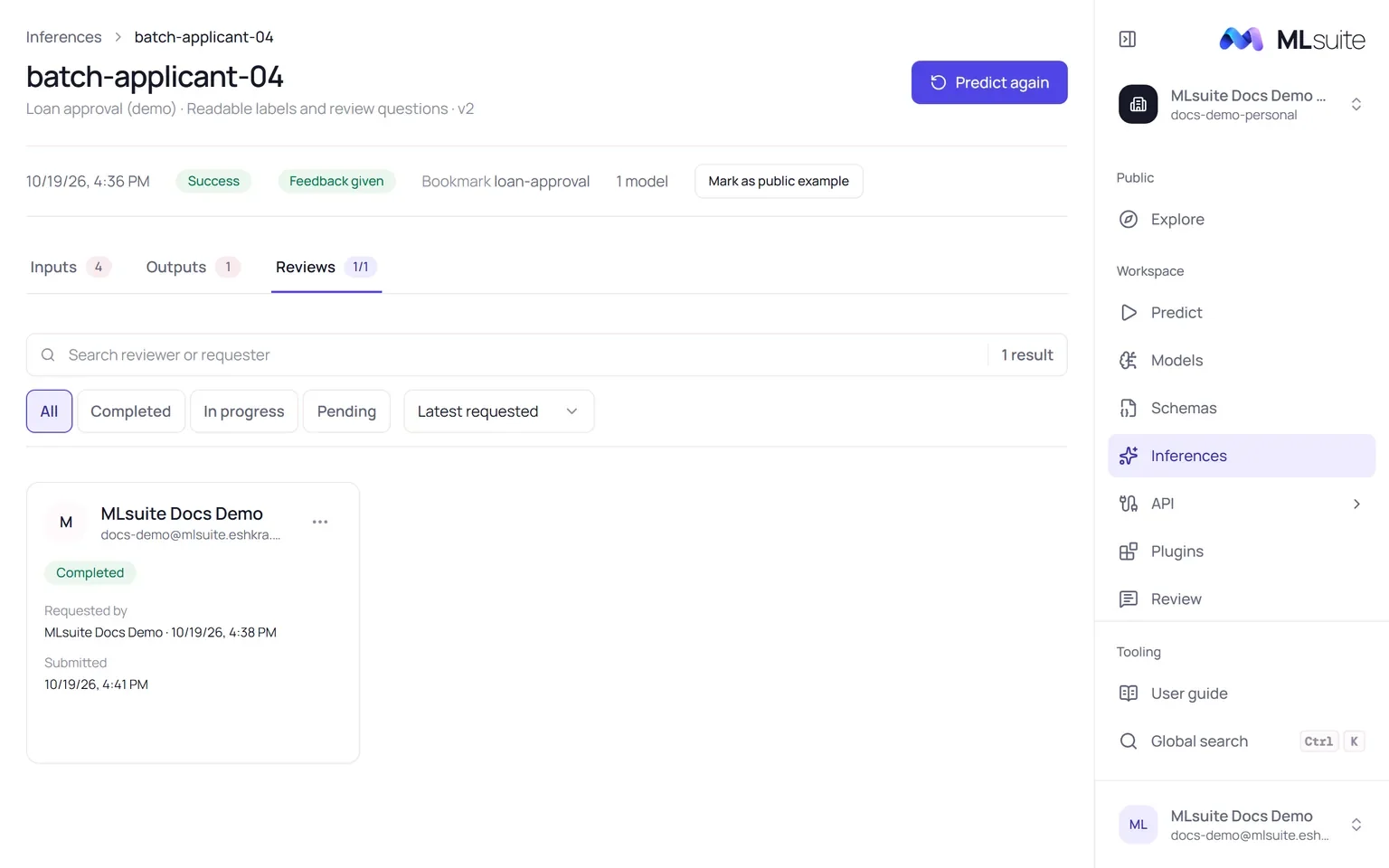
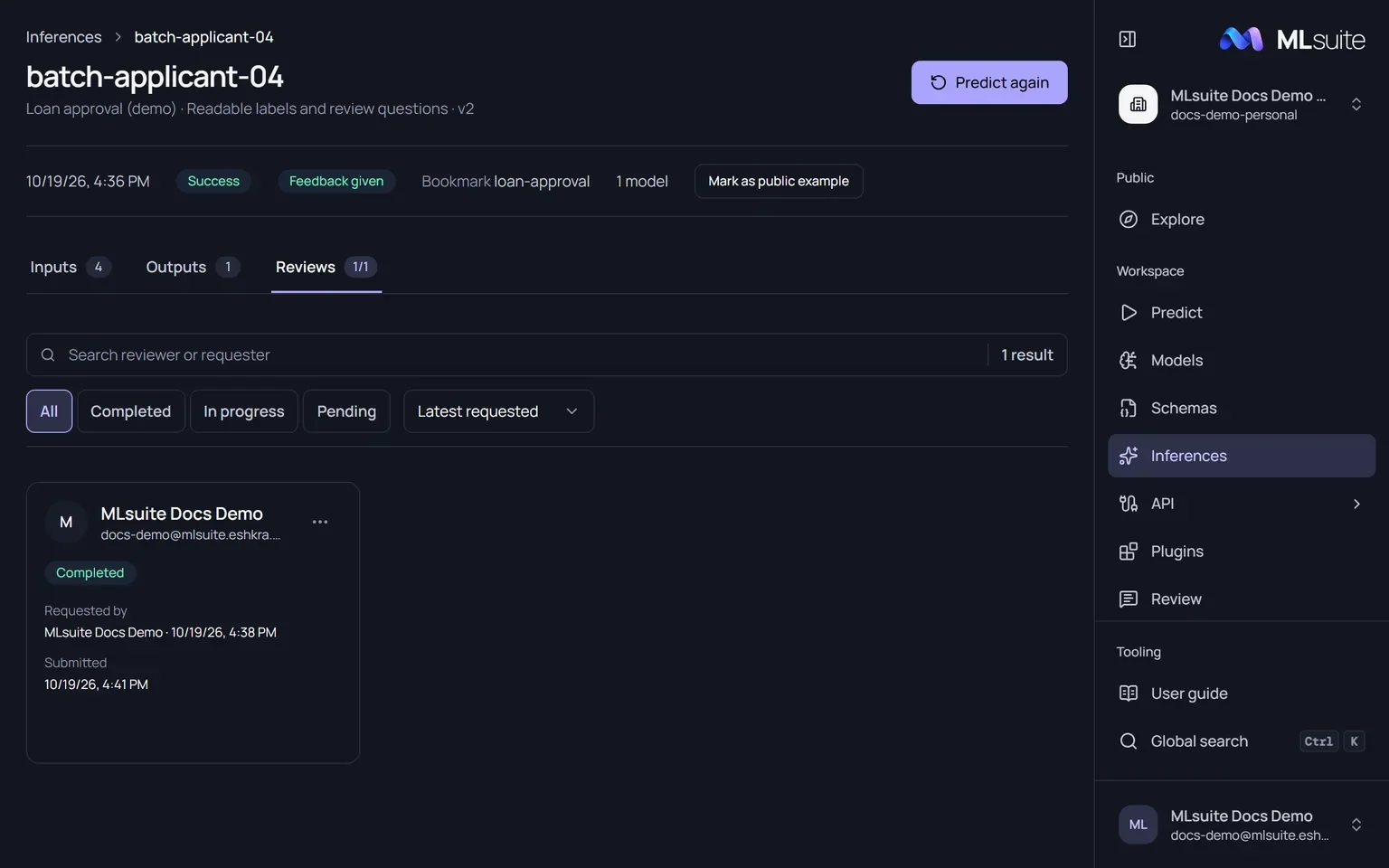
Open an inference and its Reviews tab, or choose Review status in its row menu. Each tile is one reviewer’s assignment, with a state:
| State | Meaning |
|---|---|
| Pending | Nothing saved yet. |
| In progress | Answers saved, not yet submitted. |
| Completed | Submitted. |
Tiles also show who requested the review, when it was submitted and when it expires, with an Expired badge once the date has passed. Filter by state, search by reviewer or requester, and sort by latest requested, latest submitted or reviewer. The tab refreshes while it is open. Open a tile to read that reviewer’s answers.
The Feedback column of the table says whether an inference’s questions are answered: Completed once every step has saved answers that agree, Pending otherwise, and Not configured when its snapshot asks nothing.
Reopen or delete a response
Section titled “Reopen or delete a response”A tile’s menu offers:
| Action | When | Effect |
|---|---|---|
| Reopen | Completed, and the review has not expired. | The inference returns to the reviewer’s inbox as In progress, with their answers kept. |
| Delete response | In progress or Completed. | Deletes the reviewer’s answers for this inference. The assignment stays and returns to Pending. |
An inference that belongs to a review cannot be deleted.