
Change and publish a schema
Snapshots are never edited. To improve a schema, open a change on a snapshot, edit its JSON, and publish it as the next snapshot. Then move the bookmarks you run to it.
Open a change
Section titled “Open a change”Choose New change on the schema’s Overview or Changes tab to start from the latest snapshot, or on any snapshot in the Snapshots tab to start from that one. Name the change (the default is “Update schema”) and choose Create change. The editor opens. Editing needs Edit models.
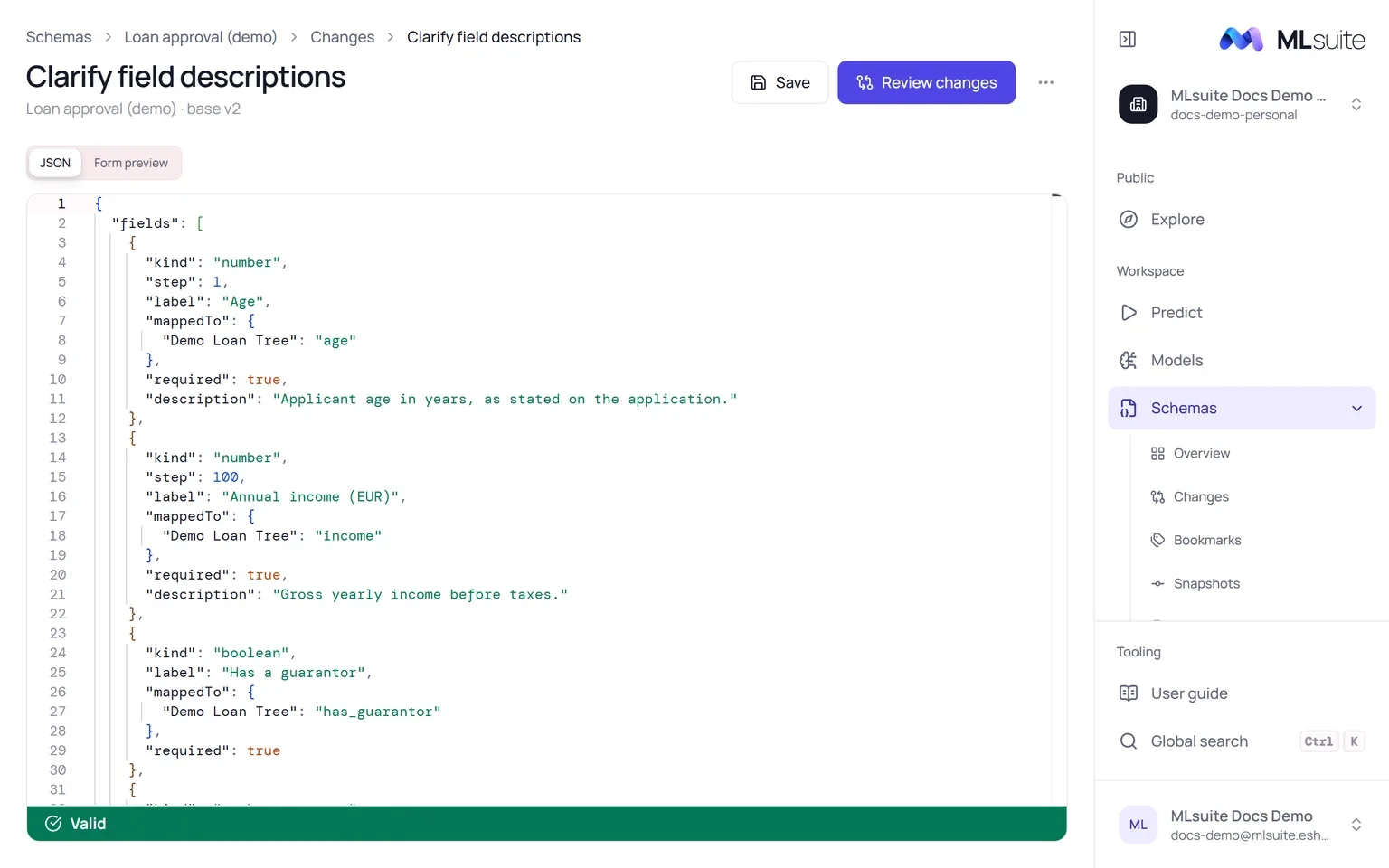
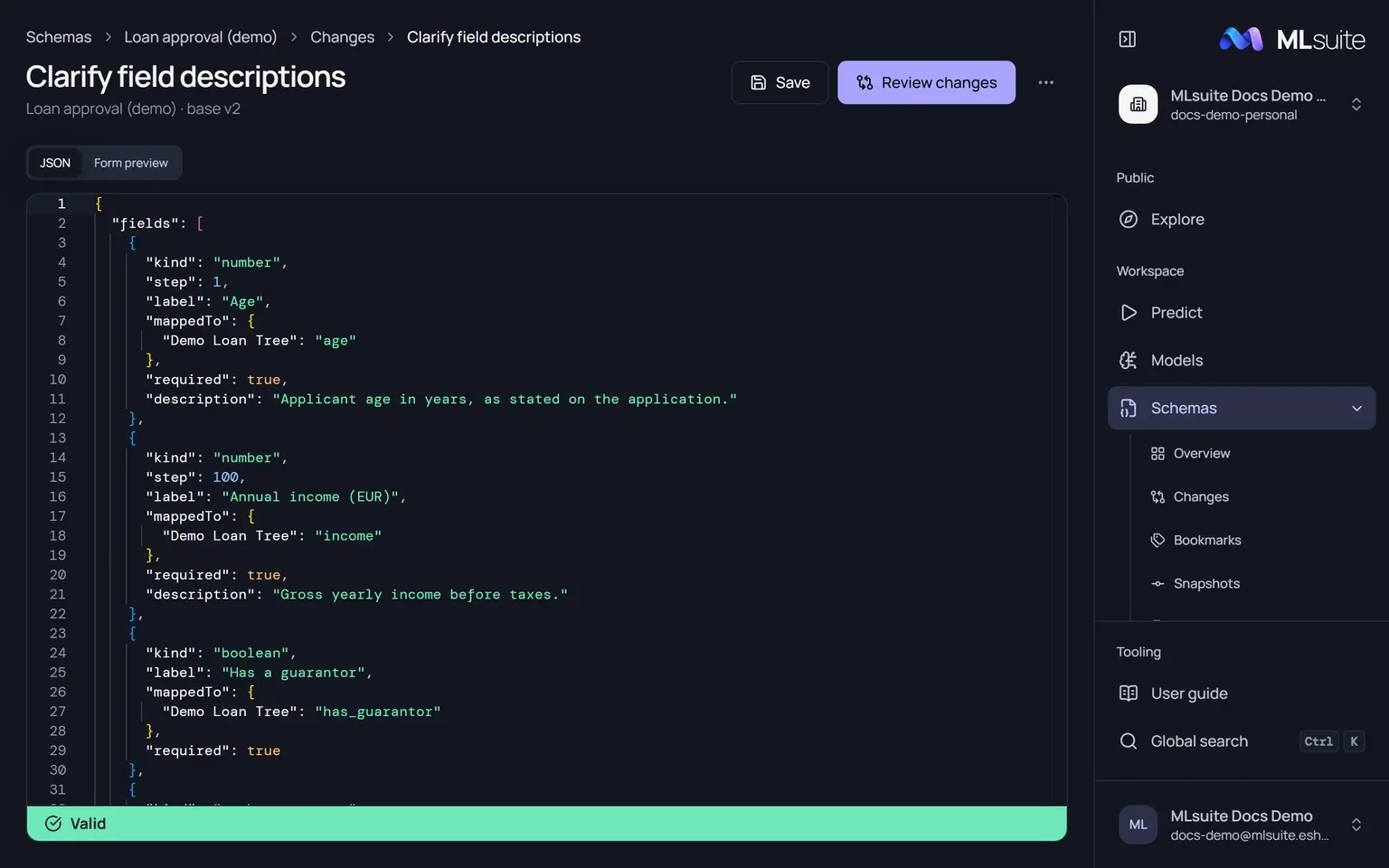
The editor holds the snapshot’s form document as JSON: fields, reports, labels, layout, conditions and review questions. It completes and validates against the field and report kinds available to the organization, including plugin kinds. The bar at the bottom says Valid or counts the errors; click it to list them. The models the snapshot binds are carried over unchanged and cannot be edited here.
- Form preview draws the form as it will look. It is available while there are no errors.
- Save stores the change. Changes are kept until published, so you can come back to them from the Changes tab.
- Review changes saves and opens the comparison.
What you can write in the document is described in the schema reference.
Review and publish
Section titled “Review and publish”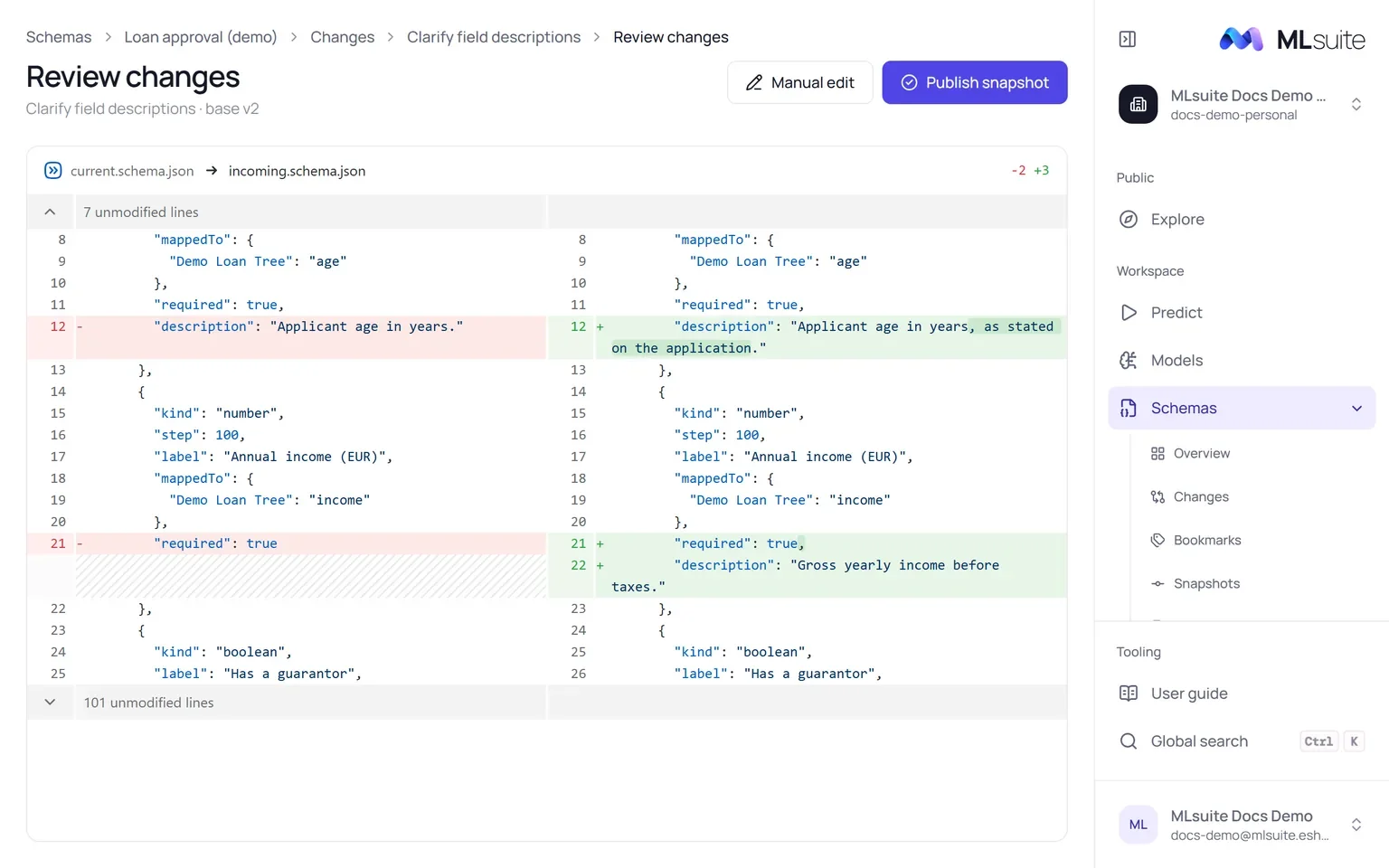
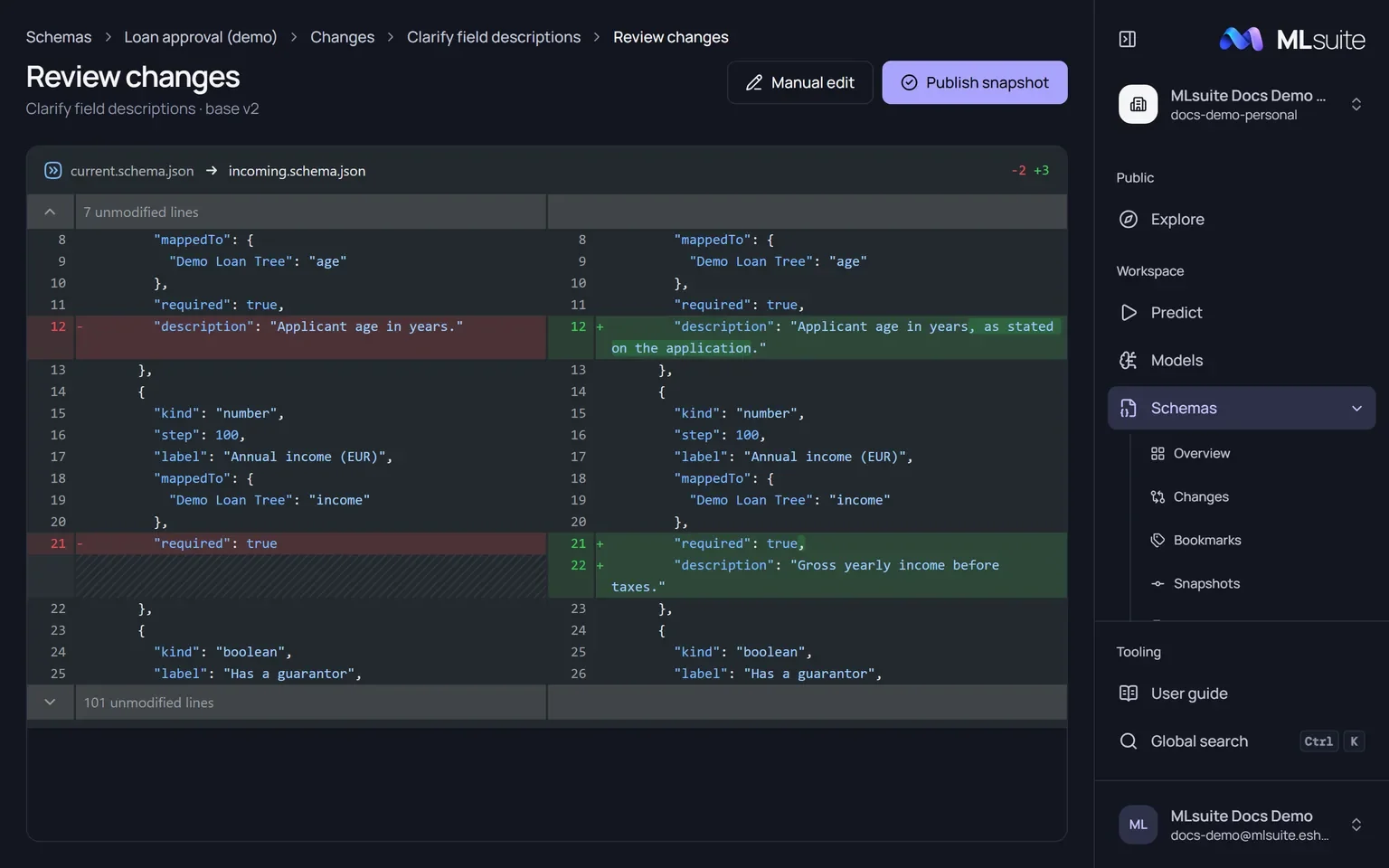
Review changes compares the snapshot with your change, side by side. Manual edit returns to the editor; Publish snapshot creates the next snapshot, named after the change, and opens it. The change becomes read-only.
Conflicts
Section titled “Conflicts”A conflict happens when another change was published after yours started and both edited the same part of the document. Publishing then marks your change Conflict and opens the merge view:
- Paths that only one side changed are merged for you.
- For each conflicting path, choose the snapshot’s value or your change’s.
- When every path is resolved, choose Apply merge. Your change is now based on the latest snapshot.
- Choose Publish snapshot.
If someone saves or publishes while you review, MLsuite refreshes the comparison and asks you to check it again.
After publishing
Section titled “After publishing”A new snapshot changes nothing that already runs. To use it:
- move each bookmark to it by bookmarking the new snapshot under the bookmark’s name (see Bookmarks);
- on Predict, a bookmark that points to an older snapshot than the latest shows that a newer version is available.