
Upload models
What MLsuite accepts
Section titled “What MLsuite accepts”MLsuite accepts trained models only as .mlbundle files exported with
MLbundle. A bundle holds the model in its native,
pickle-free format together with a manifest and a schema of its inputs and outputs. MLsuite never
loads pickle or joblib files.
| Supported | |
|---|---|
| Libraries | scikit-learn, XGBoost, CatBoost, ONNX |
| Tasks | Tabular classification and regression |
| Bundles | Written with the MLbundle version the runtime pins in backend/pyproject.toml (0.2.1 at the time of writing) |
| scikit-learn | The version the runtime pins (1.9.1 at the time of writing); a bundle from another version is refused |
The bundle’s schema is used as it comes: export with training_data= to infer the form fields
from the training frame, otherwise every feature becomes a number field. Fields map to the model’s
own feature names, or to positions 0, 1, … for a model without names. One-hot columns are
grouped into a single choice using the separator the bundle was exported with. Each model output
gets its own report.
Upload
Section titled “Upload”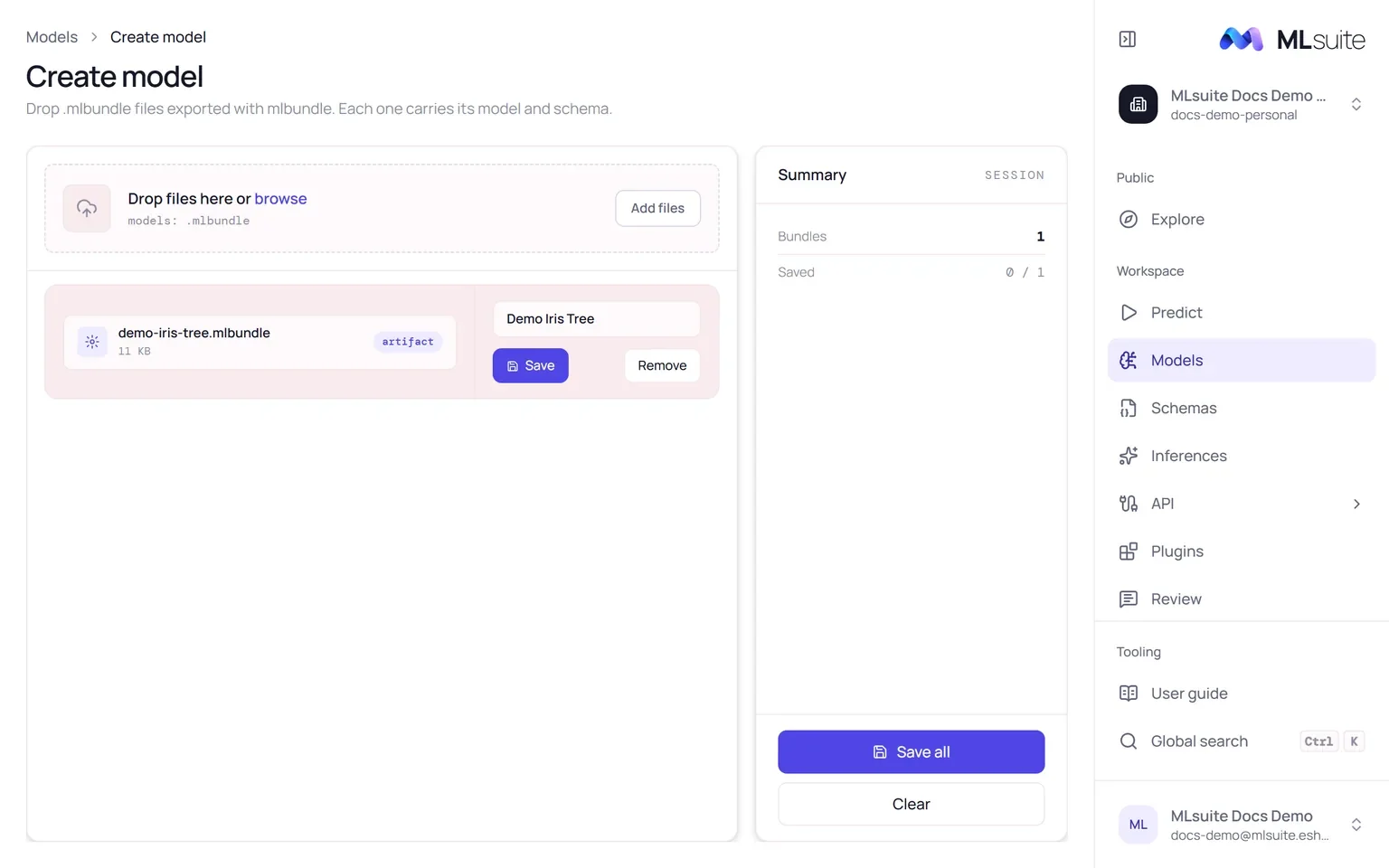
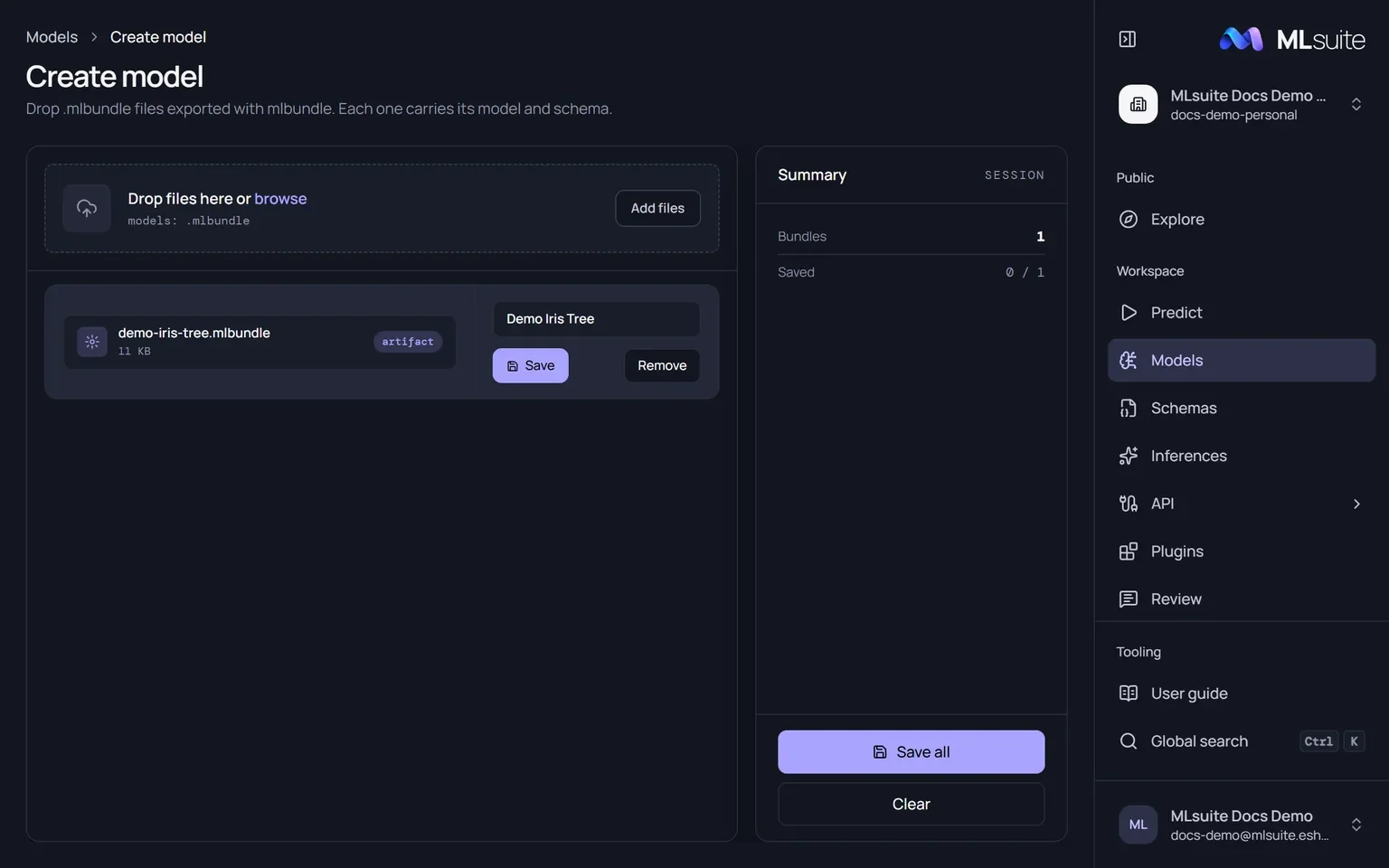
- Open Models and choose New model (needs Create models).
- Drop one or more
.mlbundlefiles, or choose Add files. Each file is checked by the runtime first; a file that cannot be loaded is not added, and the reason appears as a message such as “Cannot load bundle: …”. - Check the name of each model. It defaults to the file name in title case and must be unique in the organization.
- Choose Save on a card, or Save all to save every bundle in turn. When all are saved, MLsuite opens the models list.
Files up to 1000 MB pass the upload limits of a default installation; MLbundle itself refuses archives over 512 MiB. Models that a public bookmark or an API client runs are limited to 50 MB by default.
The models list
Section titled “The models list”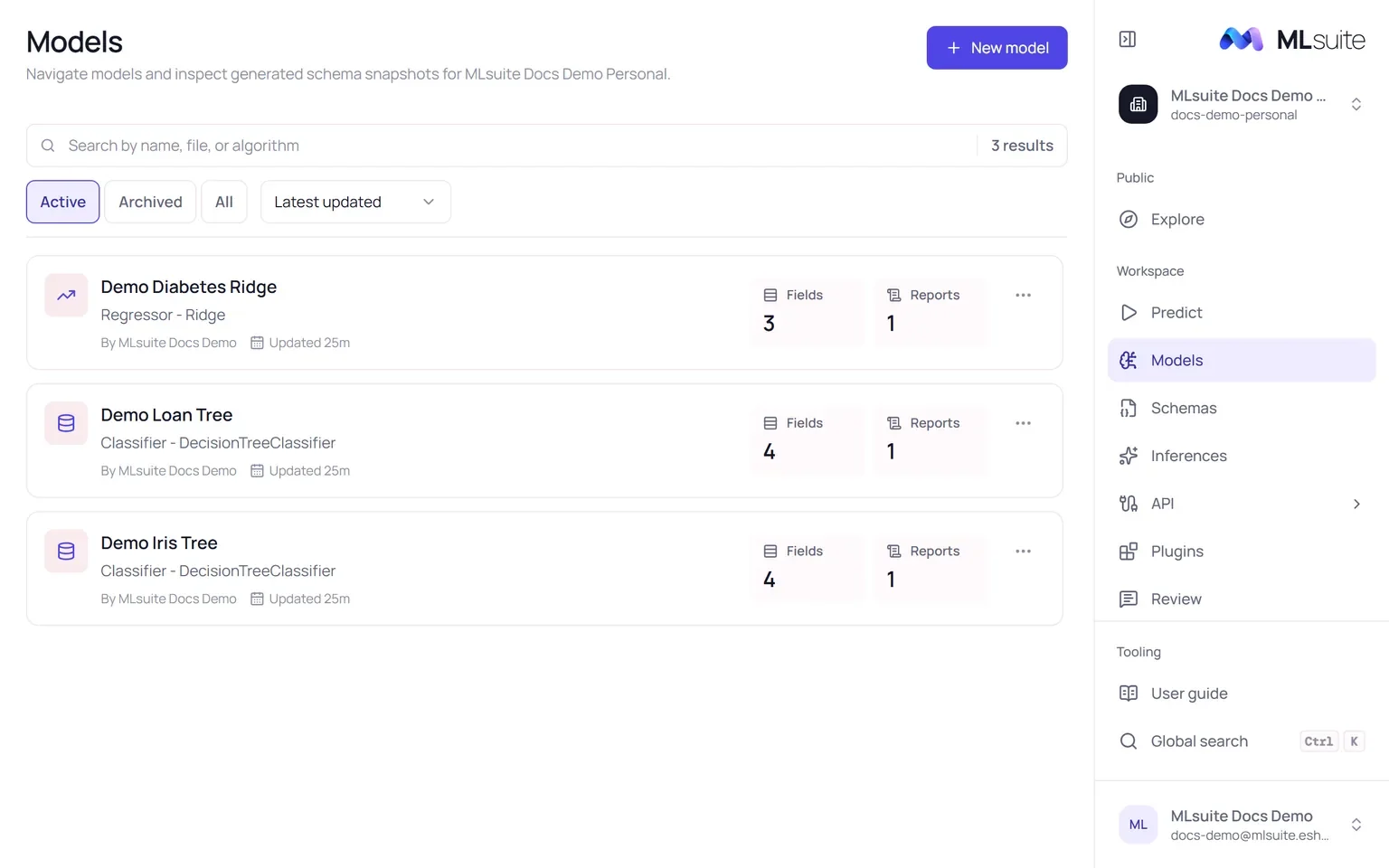
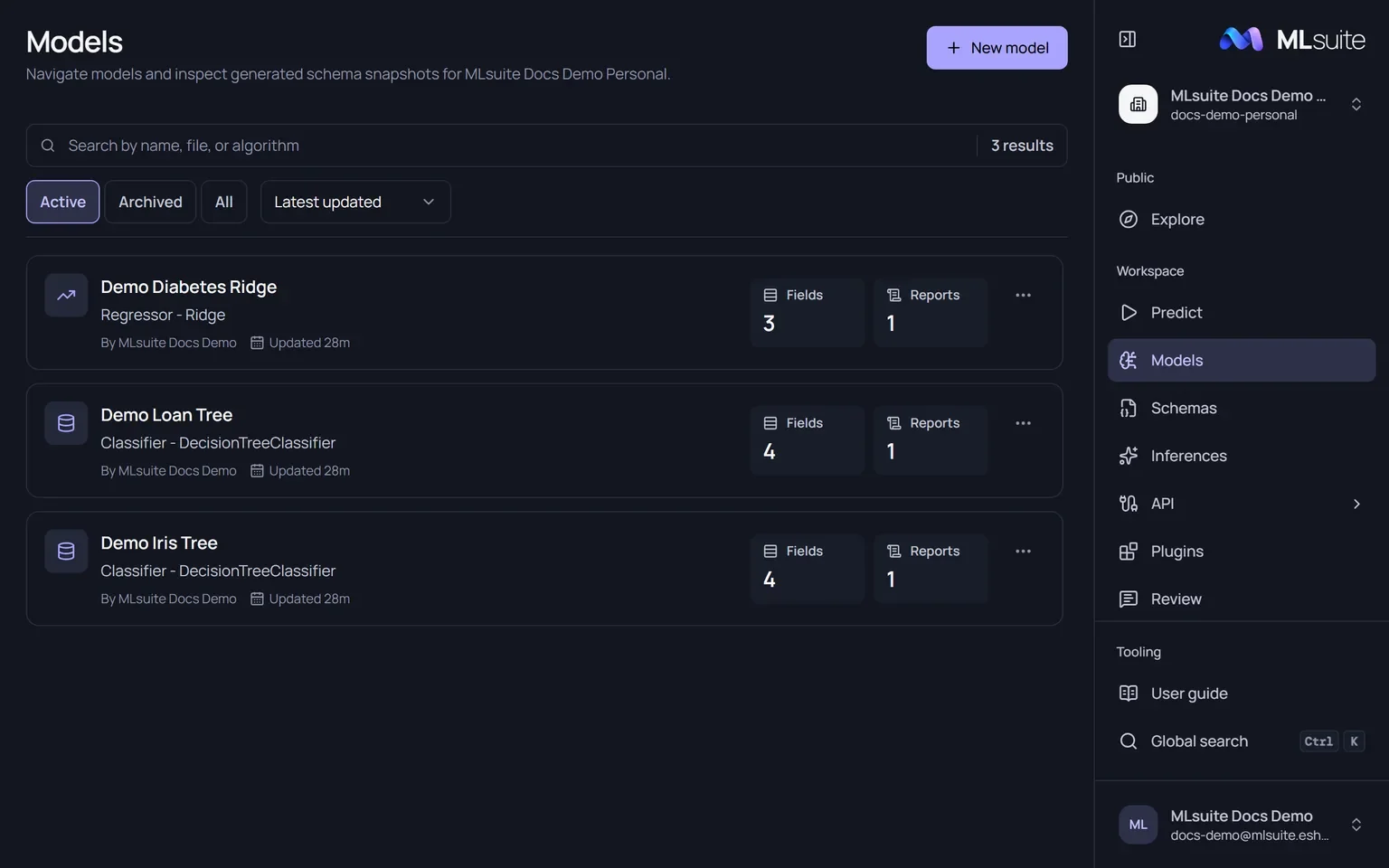
Search by name, file or algorithm; filter Active, Archived or All; sort by Latest updated, Name or Algorithm. Each row shows the kind and algorithm, who changed it last, and how many fields and reports its bundle schema has.
The model page
Section titled “The model page”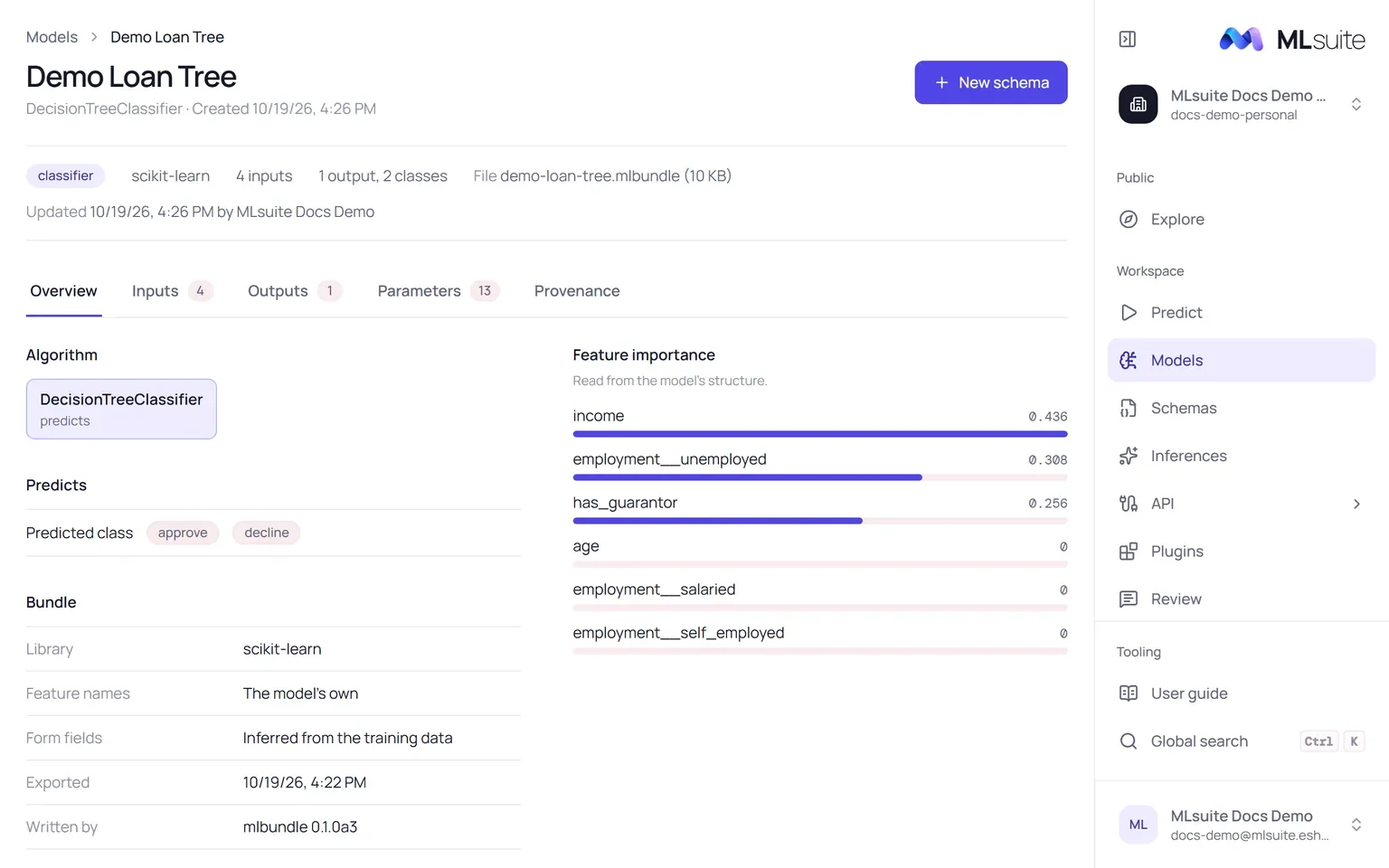
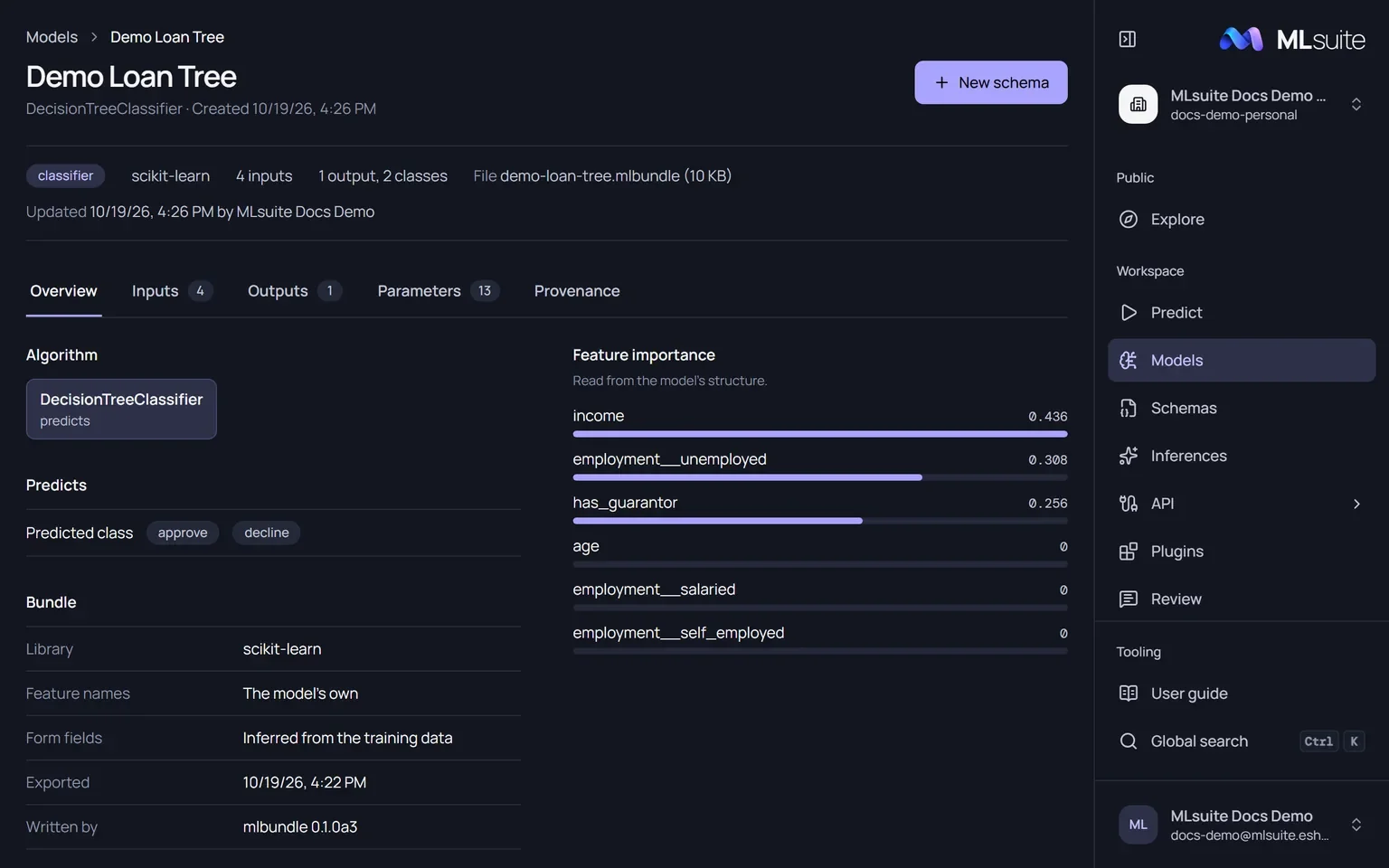
The header shows the kind, library, input and output counts, the file and its size. New schema starts a schema from this model. The tabs are:
| Tab | Shows |
|---|---|
| Overview | The algorithm or pipeline steps, what it predicts (classes, or “A number”), bundle facts and feature importance when the model’s structure provides it. |
| Inputs | Every form field: its kind, which feature columns it feeds, the training type and whether it is required. |
| Outputs | Each report, its kind, output position, target and classes. |
| Parameters | The model’s hyperparameters, grouped by pipeline step and searchable. |
| Provenance | The stored file and its SHA-256, the bundle id and format, each member of the archive with its hash, the training environment (Python, system, package versions) and the author’s notes. |
The training environment is what the exporter declared; MLsuite does not check it against the model.
Rename, duplicate, archive, delete
Section titled “Rename, duplicate, archive, delete”The actions of each row in the models list:
| Action | Effect |
|---|---|
| Edit | Rename the model (needs Edit models). |
| Duplicate | Copy it under a new name (needs Create models). |
| Archive | Hide it from the active list. Archived models stay listed under Archived, open with an Archived badge, cannot be chosen for new schemas, and keep running in the schemas that already bind them. Archiving cannot be undone. |
| Delete | Remove it for good (needs Delete models). Refused while any schema snapshot or inference uses the model: archive it instead. |
If someone else changed the model since you loaded the page, the action is refused with “Model changed since it was loaded; refresh and retry”. Reload and try again.