
Create an account
You can browse and run published bookmarks in Explore without an account. Everything else needs one.
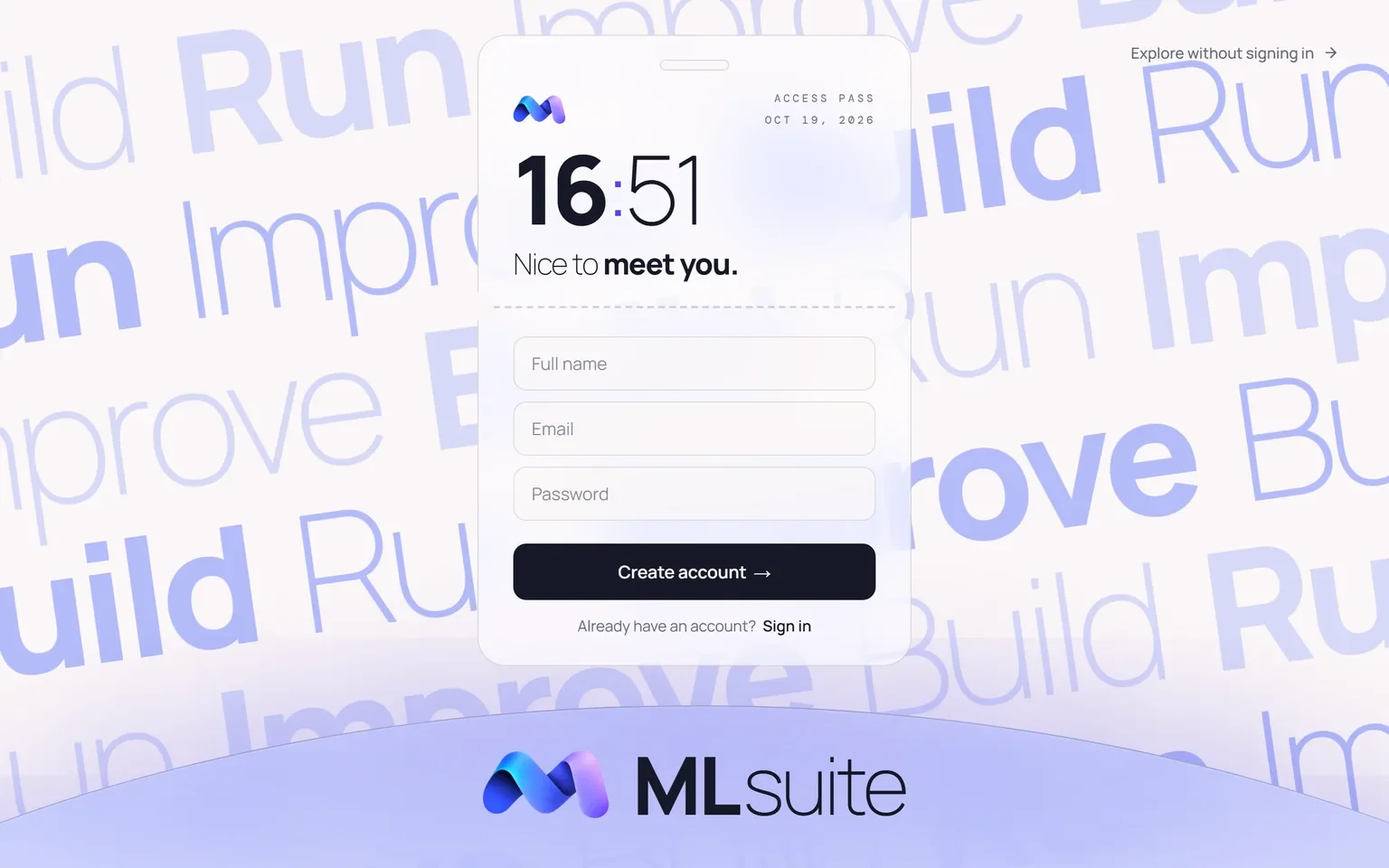
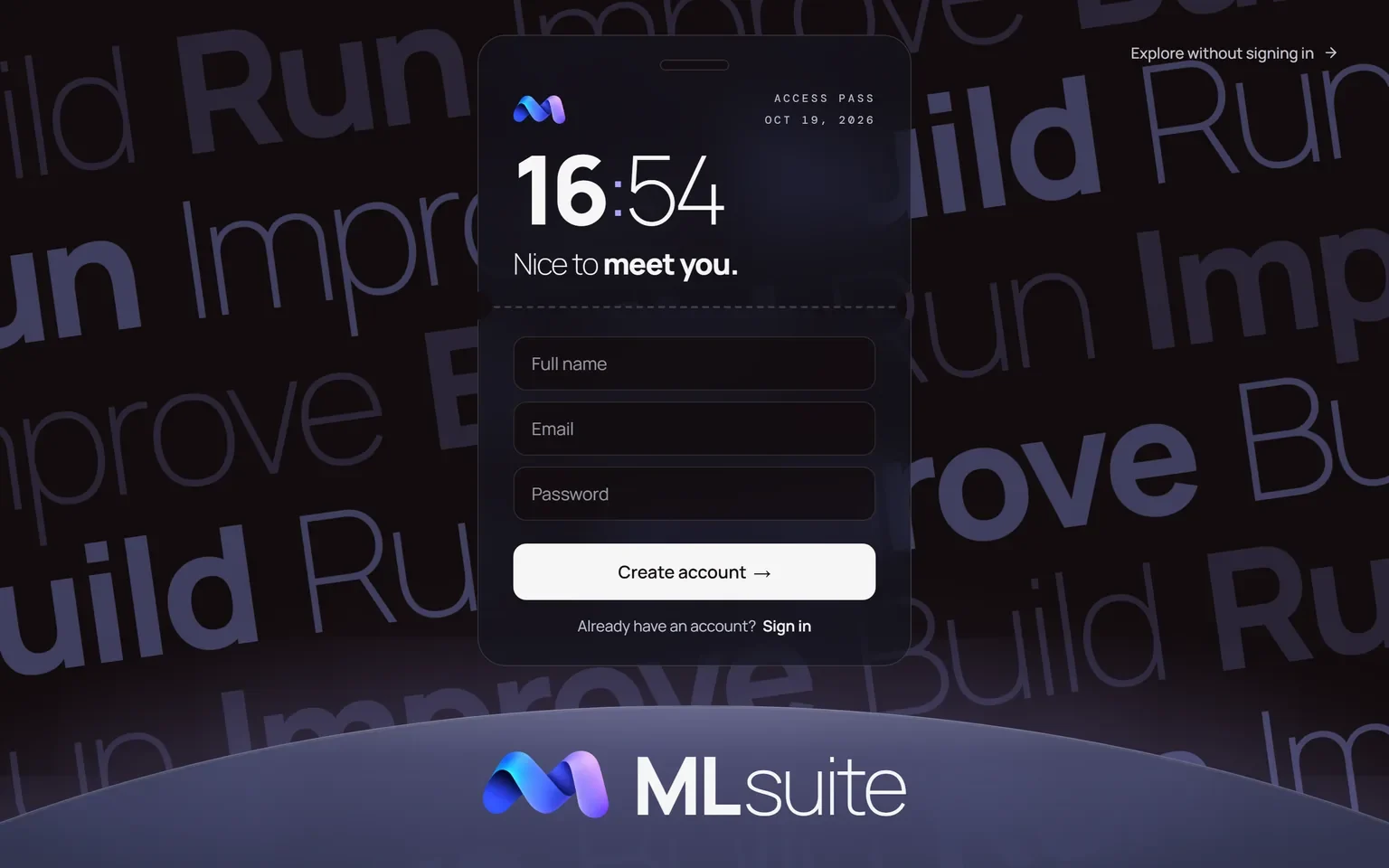
Register
Section titled “Register”- Open the instance, for example mlsuite.irlab.org, and choose
Create account in the header. The form is also at
/login?mode=register. - Enter your Full name, Email and Password, then choose Create account.
| Field | Rule |
|---|---|
| Full name | Up to 150 characters. |
| A valid address, not already registered. It is stored in lowercase. | |
| Password | 10 to 128 characters. |
There is no email verification and no separate username: MLsuite derives the username from the
part of the email before @. If registration fails, the form only says “We couldn’t create your
account”; an address that is already registered is the most common cause.
A new account gets a personal organization named “<Full name> Personal”, in which it is the Owner. You can upload models and run them there straight away.
Sign in and out
Section titled “Sign in and out”Sign in at /login with your email and password. After signing in, or registering, MLsuite returns
you to the page you came from; with no page to return to, it opens Explore. Opening a workspace
page without a session sends you to the sign-in page and back again afterwards.
Sign out from the account menu at the bottom of the navigation. If the current session holds runs you have not saved, MLsuite asks first: Discard and sign out loses them.
The session is a browser cookie. Neither the app nor the API offers a password reset: on a self-hosted instance, a superadmin can set a new password for you.
Change your details
Section titled “Change your details”The Profile page shows your name, email, system role, current organization and your role in it. It is read-only: name, email and password changes are made by a superadmin.