
Find your way around
Navigation
Section titled “Navigation”The navigation has up to three groups, always in this order:
| Group | Entries | Shown to |
|---|---|---|
| Public | Explore | Everyone, with or without an account. |
| Workspace | Predict, Models, Schemas, Inferences, API, Plugins, Review | Members, each entry only with the permission it needs. |
| Administration | Organizations, Users, Moderation, API traffic, Infra | Superadmins. |
A group with nothing you may open is left out. Each section remembers where you were in it on this device, so its entry takes you back there when you come from another section.
The navigation is a right-hand sidebar by default. In
Settings › Layout you can move it to the left, top or bottom, make it
float, or start it collapsed. Collapse sidebar (Ctrl/⌘ + B) shrinks it to icons.
Below the groups, Tooling holds User guide and Global search, and the account menu at the bottom opens Profile, Notifications, Settings and Sign out.
The organization switcher
Section titled “The organization switcher”Everything in the Workspace group belongs to the organization shown at the top of the navigation. Its menu opens that organization’s Overview, Members, Invitations, Roles & templates, Audit log and Settings (each one when your permissions allow it) and lists your other organizations under Switch organization. Choosing one switches to it and opens its home page. See Organizations.
Global search
Section titled “Global search”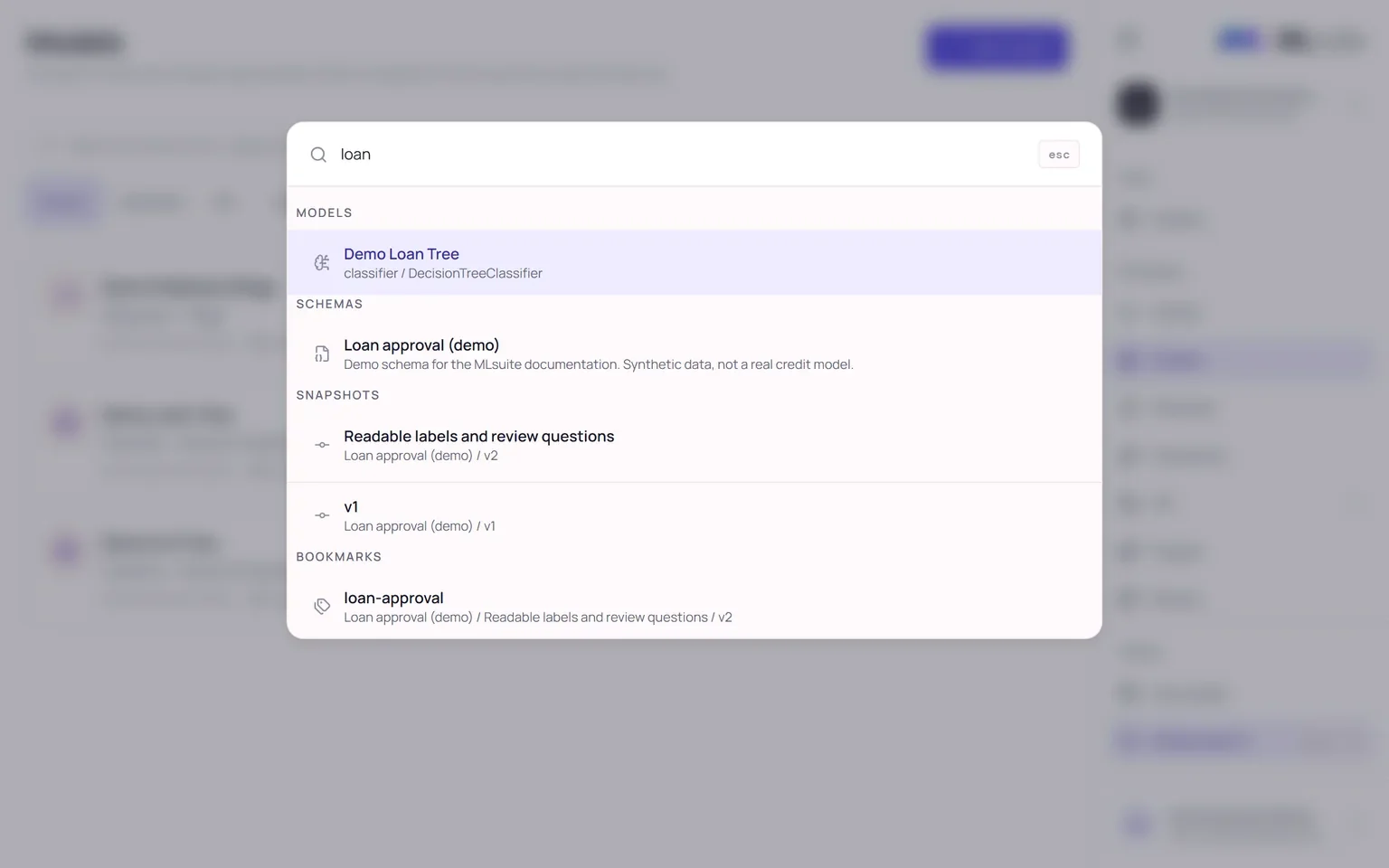
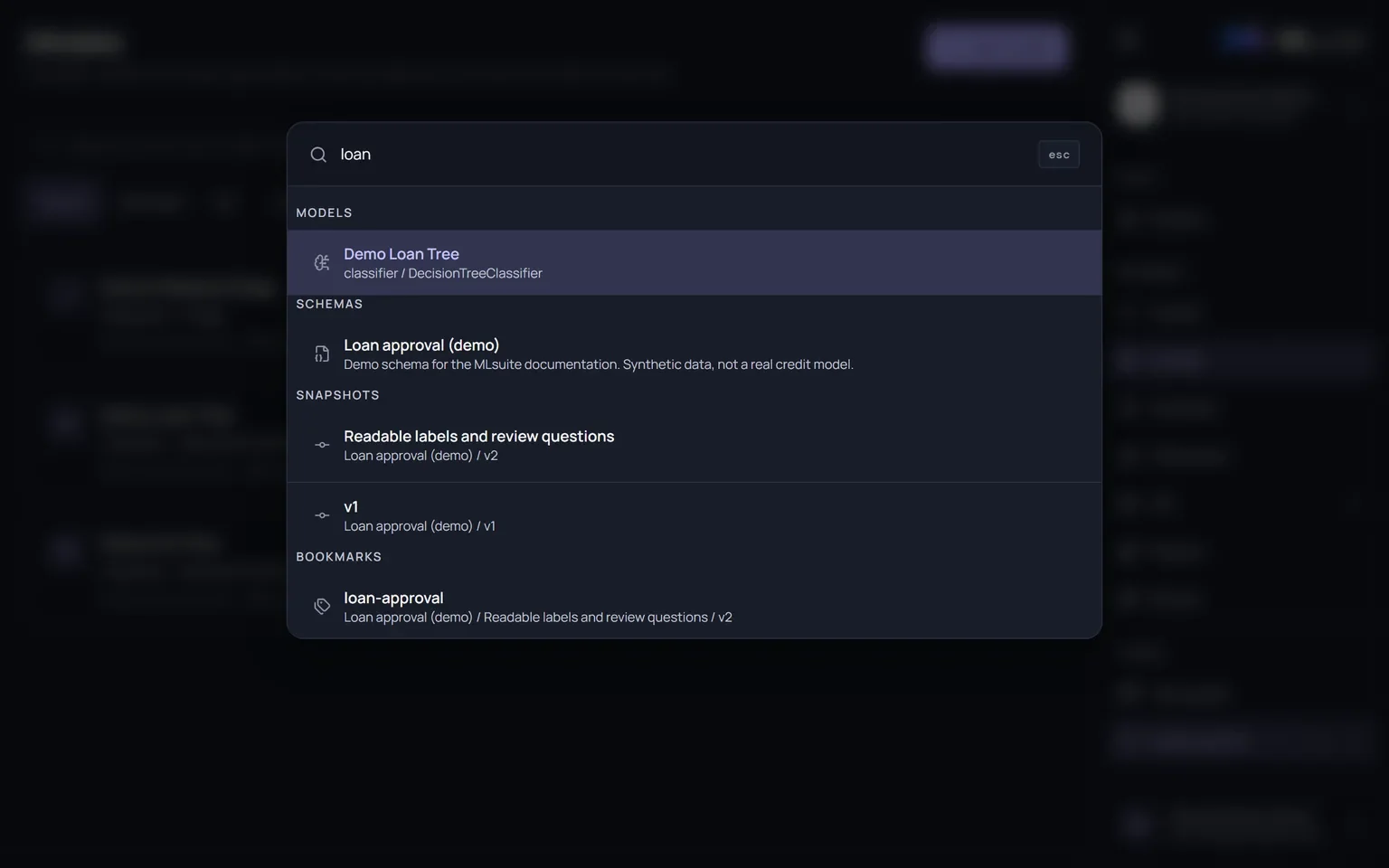
Press Ctrl/⌘ + K, or choose Global search, and type at least two characters. Results
are grouped as organizations, models, schemas, snapshots, bookmarks, inferences and plugins, five
per group, all from the current organization except your organizations. Use the arrow keys and
Enter to open one, Esc to close.
Each group follows the permission of its own catalog: models, schemas, snapshots, bookmarks and inferences need View models, plugins need View plugins. Groups you can’t see are left out.
Keyboard shortcuts
Section titled “Keyboard shortcuts”| Shortcut | Action |
|---|---|
Alt + 1…9 |
Open the Nth navigation entry; Explore is always Alt + 1. Hold Alt to see the numbers. |
Alt + Shift + 1…9 |
Open the Nth page of the current section, such as a schema’s tabs. |
Ctrl/⌘ + K |
Global search. |
Ctrl/⌘ + B |
Collapse or expand the sidebar. |
Ctrl/⌘ + Shift + L |
Cycle the color scheme: System, Light, Dark. |
Ctrl/⌘ + Shift + F |
Enter or leave fullscreen. |
The last four can be changed in Settings › Keybindings. Number shortcuts do nothing while you type in a field.
The tour
Section titled “The tour”User guide starts a short tour of the navigation: each step points at one entry and says what it is for. Use Next and Previous, or click outside the tour to close it. Replay it whenever you like.