
Quick start
This walkthrough takes a scikit-learn classifier from a Python session to a saved, reviewable inference. It uses the demo model behind the screenshots in this manual: a decision tree that approves or declines a synthetic loan application.
1. Export a bundle
Section titled “1. Export a bundle”MLsuite accepts models only as .mlbundle files written by
MLbundle. Export with the MLbundle and scikit-learn versions
the instance pins in backend/pyproject.toml (MLbundle 0.2.1 and scikit-learn 1.9.1 at the time
of writing); a scikit-learn bundle loads only with the version that wrote it.
python -m pip install "mlbundle[sklearn,schema]==0.2.1" "scikit-learn==1.9.1" pandasimport numpy as npimport pandas as pdfrom sklearn.tree import DecisionTreeClassifier
from mlbundle import export
rng = np.random.default_rng(7)frame = pd.DataFrame({ "age": rng.integers(21, 70, 400), "income": rng.normal(42000, 12000, 400).round(0), "has_guarantor": rng.random(400) < 0.3, "employment": rng.choice(["salaried", "self_employed", "unemployed"], 400),})score = ( frame.income / 1000 + frame.has_guarantor * 15 - (frame.employment == "unemployed") * 25)y = np.where(score > 40, "approve", "decline")X = pd.get_dummies(frame, columns=["employment"], prefix_sep="__", dtype=int)model = DecisionTreeClassifier(max_depth=4, random_state=7).fit(X, y)
export(model, "demo-loan-tree.mlbundle", training_data=X)Passing training_data= lets MLbundle infer the form fields from the training frame: a number,
a true/false choice and one employment choice built from the three one-hot columns. Without it,
every feature becomes a number field.
2. Upload, describe, run
Section titled “2. Upload, describe, run”-
Upload the model. Sign in, open Models and choose New model. Drop
demo-loan-tree.mlbundleon the page, check its name and choose Save. See Upload models. -
Create a schema. Open Schemas, choose New schema, select the model, name the schema and choose Create schema. Its first snapshot,
v1, is published at once with the fields and report the bundle carried. See Schemas. -
Bookmark the snapshot. Open the schema’s Snapshots tab, open the actions of
v1and choose Bookmark. Name it, for exampleloan-approval, and choose Save bookmark. See Bookmarks. -
Run it. Open Predict and choose the bookmark. Fill the form and choose Run schema. The result appears in the Results tab and the run joins the Session panel.
-
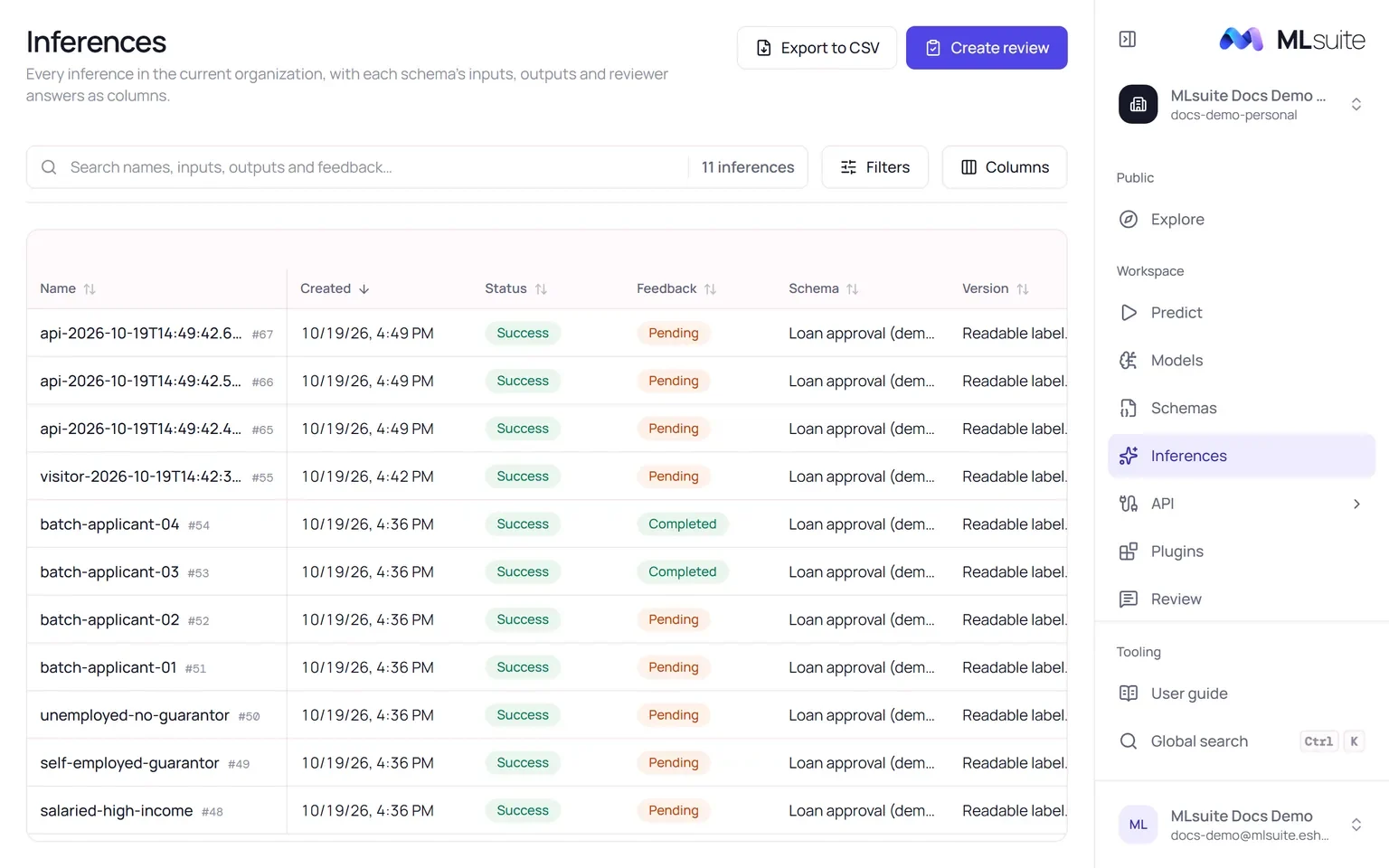
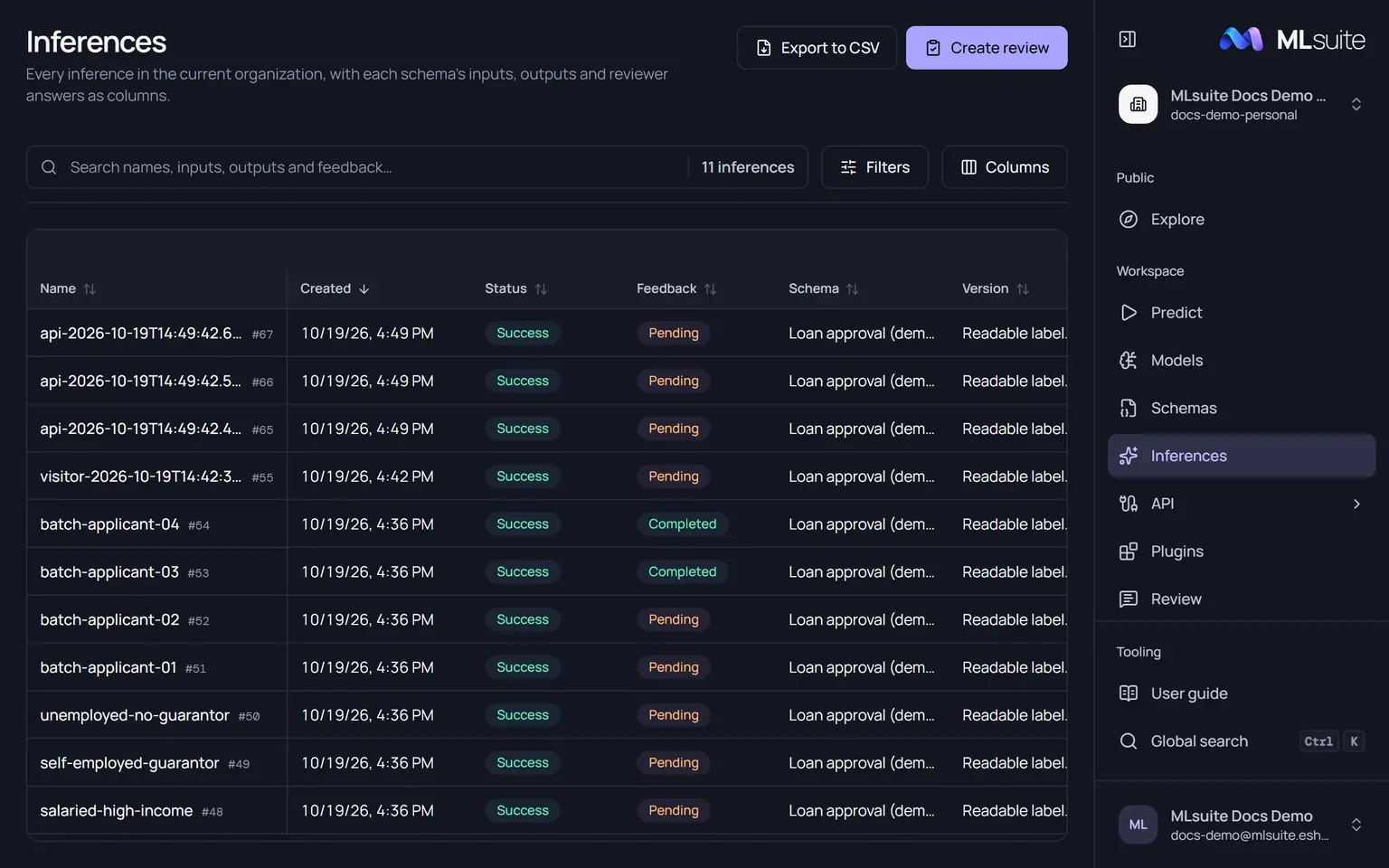
Save the run. Give the run a name in the session panel and choose Save. It is now an inference, listed under Inferences with its inputs, outputs and the snapshot it ran on. See Run predictions.
Next steps
Section titled “Next steps”- Give the fields readable labels and add review questions by publishing a change.
- Run many records at once with a CSV or XLSX upload.
- Ask reviewers to check the results, then export everything.
- Publish the bookmark so anyone can run it, or give it to an API client.