
Explore and public pages
Explore
Section titled “Explore”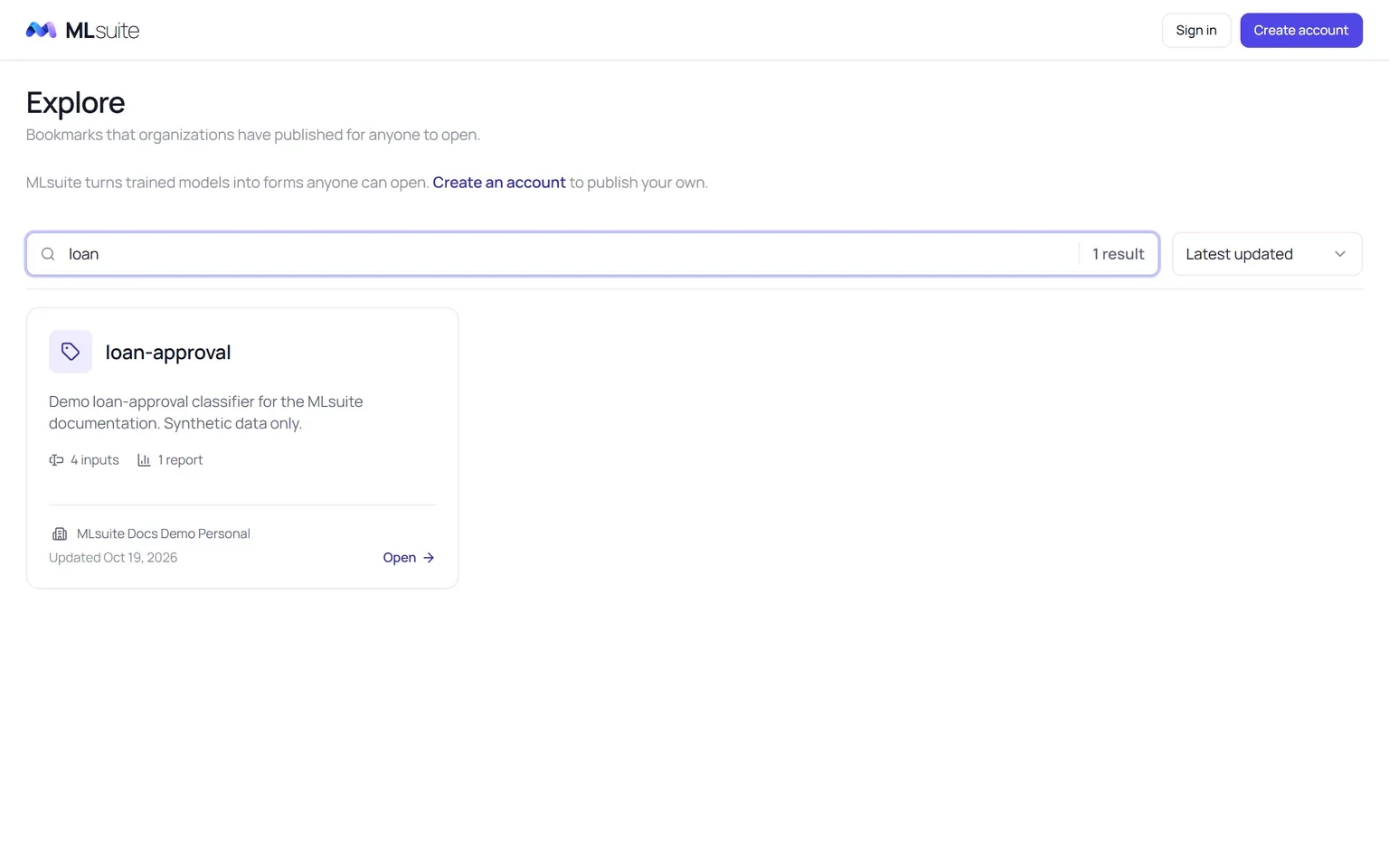
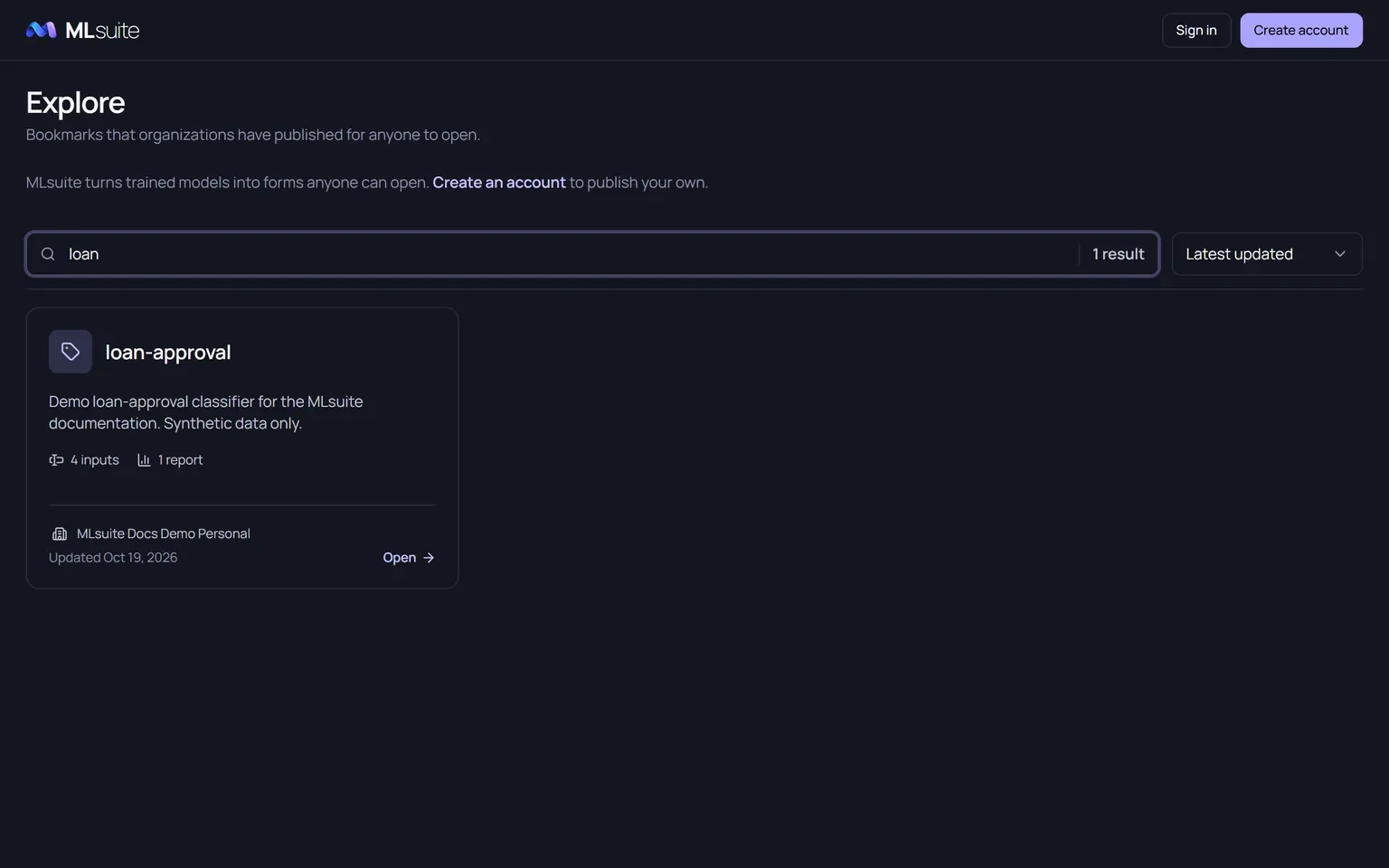
Explore lists every bookmark published on the instance. It is the first navigation entry for members and the home page for visitors without an account, whose header offers Sign in and Create account; both bring you back to the page you were on.
Search by bookmark name, description or publisher, and sort by Latest updated or Name. Each card shows the bookmark’s name and description, how many inputs it asks for and reports it gives back, the publishing organization and when it was updated.
A public page
Section titled “A public page”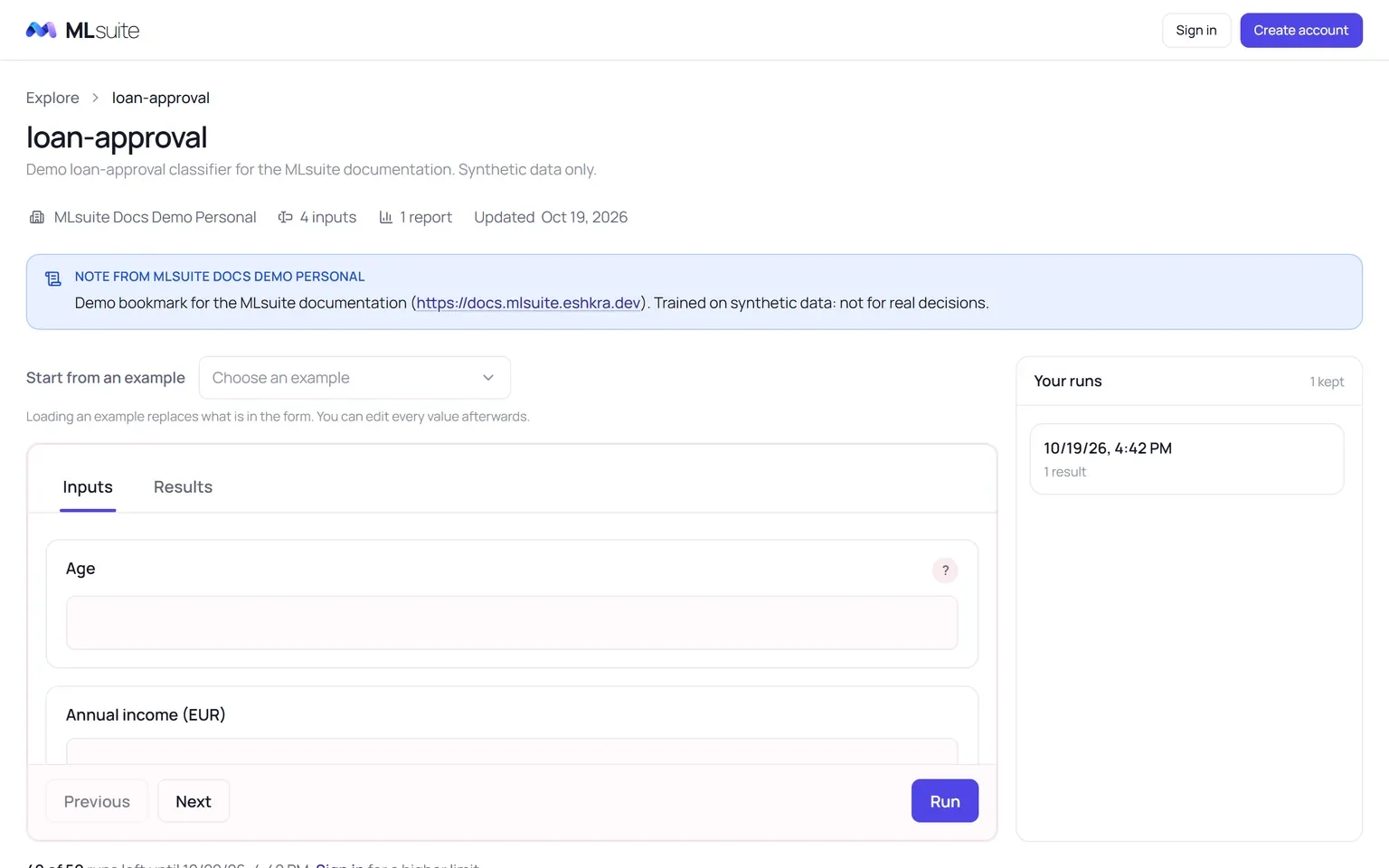
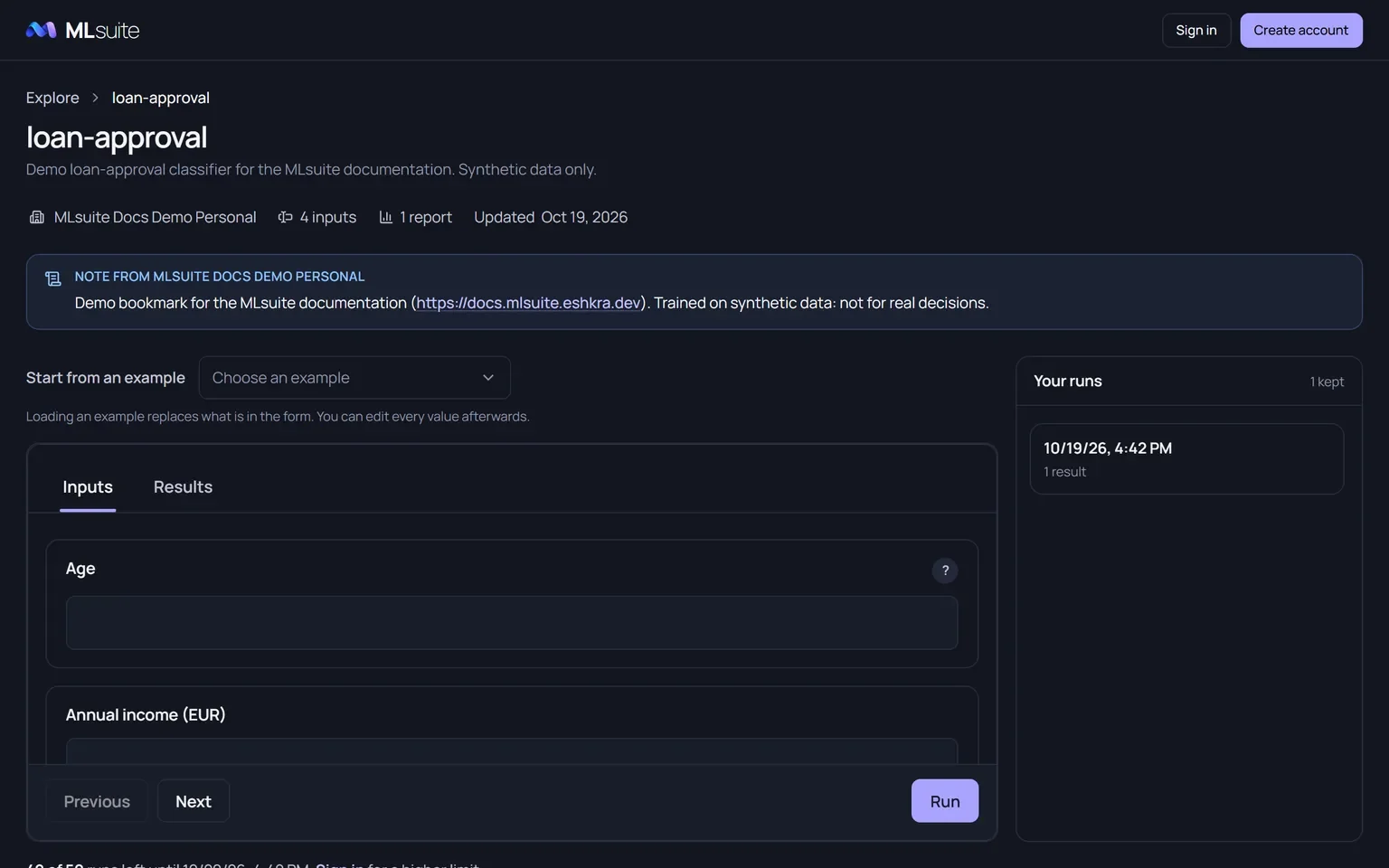
The page shows the bookmark’s name and description, its publisher, input and report counts, and the publisher’s note, with its links and DOIs made clickable. Members of the publishing organization also see Open in workspace.
To run it:
- Optionally choose a record under Start from an example. It replaces what is in the form, and every value can be edited afterwards.
- Fill the form and choose Run. The results appear in the Results tab.
A line under the form says how many runs you have left. Each caller may run one bookmark a limited number of times in 24 hours, counted from their first run of it:
| Caller | Runs per bookmark per 24 hours (default) |
|---|---|
| Without an account, per network address | 50 |
| Signed in, per account | 500 |
Past the limit, the form asks you to sign in or says when you can run again. When too many public runs are in progress, a run is refused with “The models are busy”; try again a moment later. Runs the server could not perform are not counted.
Your runs
Section titled “Your runs”Every run you make is kept, with its results, under Your runs, newest first, for this browser. MLsuite recognizes the browser by a cookie set on the first run and kept for a year; clearing it loses the list, though not the runs themselves, which the publishing organization keeps. Open a run to see its results and the inputs it ran with; Back to form returns to the form. A run made on an earlier version of the form shows only its inputs.
Review a run
Section titled “Review a run”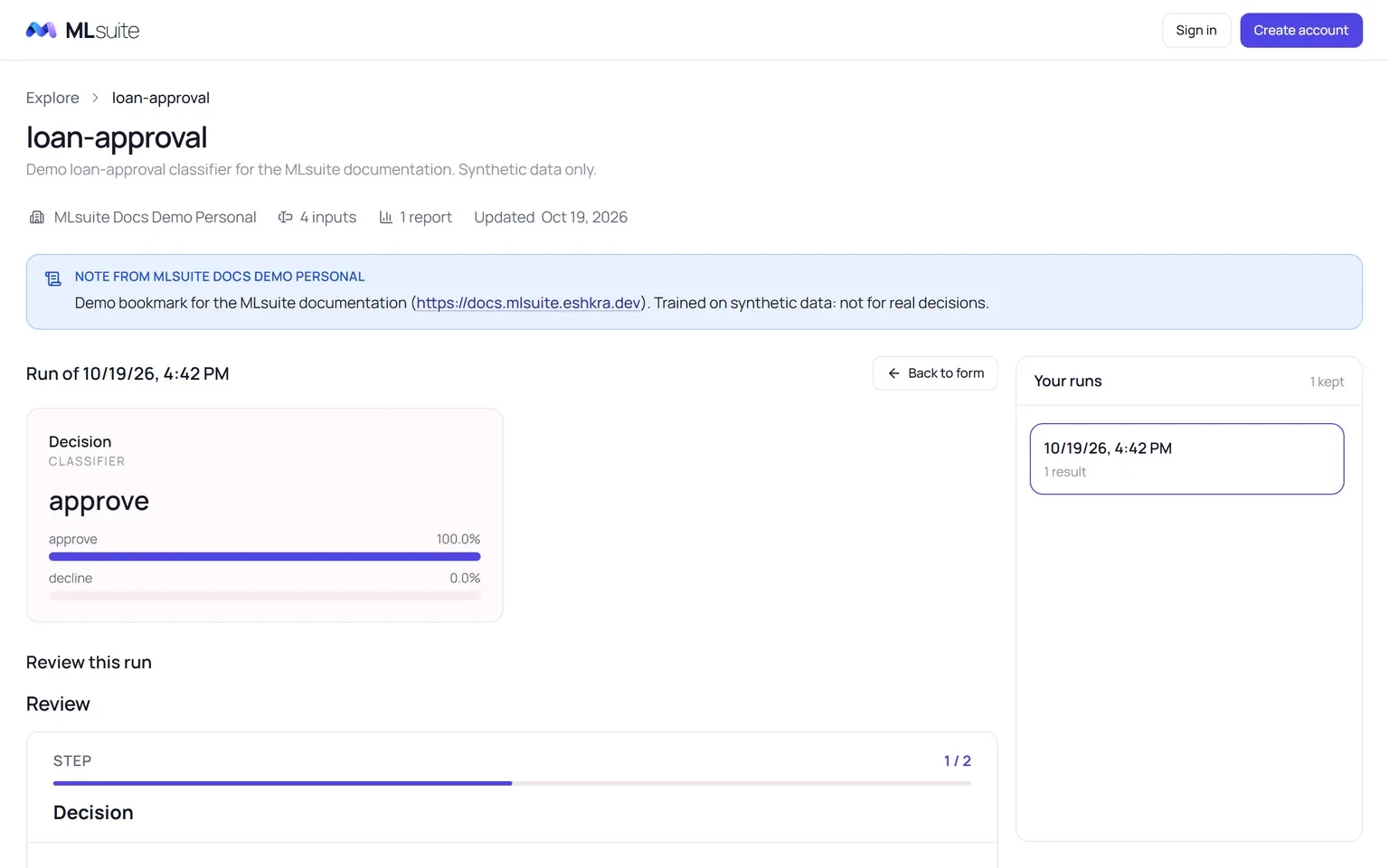
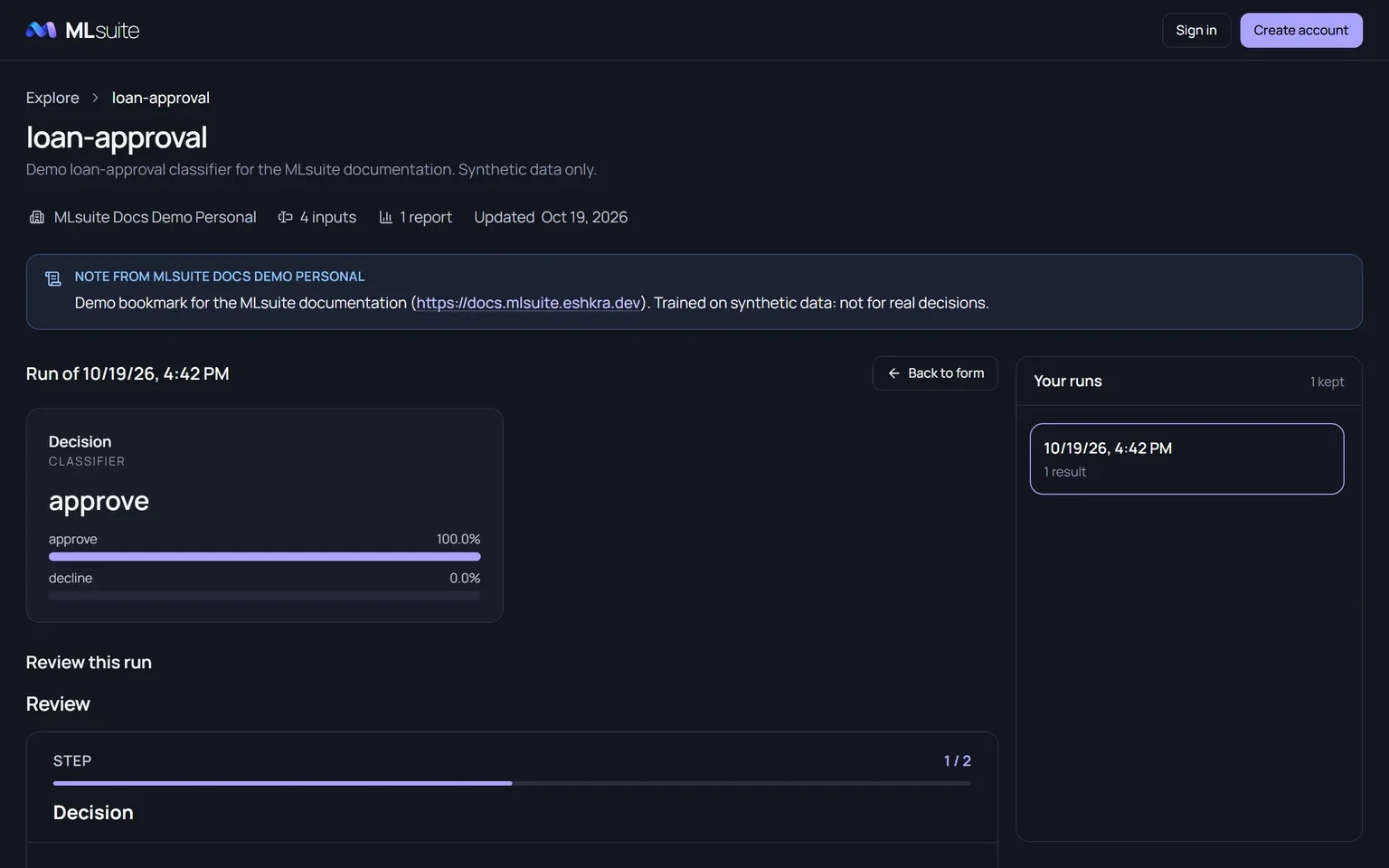
Under an opened run, Review this run shows the bookmark’s review steps: an assessment of each prediction and the questions of its questionnaires. Choose Save review; Edit changes it later. The run is marked Reviewed in Your runs once every step is answered. No account is needed. Your answers reach the publisher as feedback from “Visitor”, or from your account when you are signed in.
Link previews
Section titled “Link previews”Links to a public page unfurl in chat apps and social networks with the bookmark’s name, its description (or its note) and the organization’s logo, or the MLsuite mark when it has none.